Help center · Tutorial · 7 steps
How to create your researcher profile and import your publications and patents
- About 10 minutes
- Free plan and up
- Checked in the app on
To create your researcher profile on Helikon, sign up free, then import your publications by ORCID iD, DOI, OpenAlex ID, or name matching, and your patents by patent number or name matching. If you've published, the platform may already have a record of your work, and claiming it is the first step.
Before you start: have your ORCID iD to hand if you have one. It's the fastest and most reliable way to bring in your papers. For patents, the importer covers U.S. patents.
Step 1Claim your record, or create one
Helikon builds researcher records from the public research record, so if you've published, there's probably one under your name. During sign-up, the Import publications step asks you to claim it. Search with your name as it appears on your papers, including an earlier name or initials if you've used them, and pick the record that's yours.
If nothing under your name is you, click I'm a new researcher to create your profile. You get a new record of your own, and you add your work to it in the next steps.
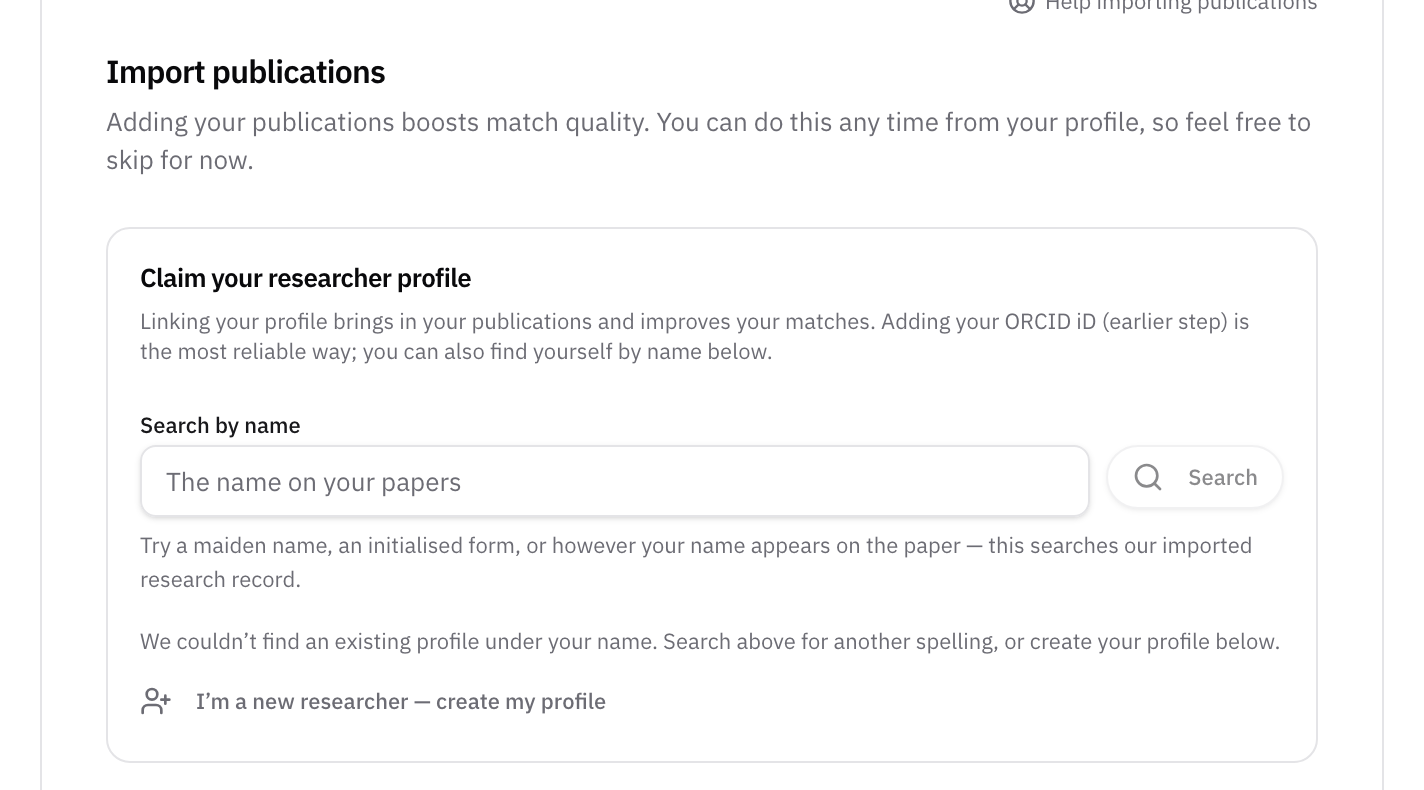
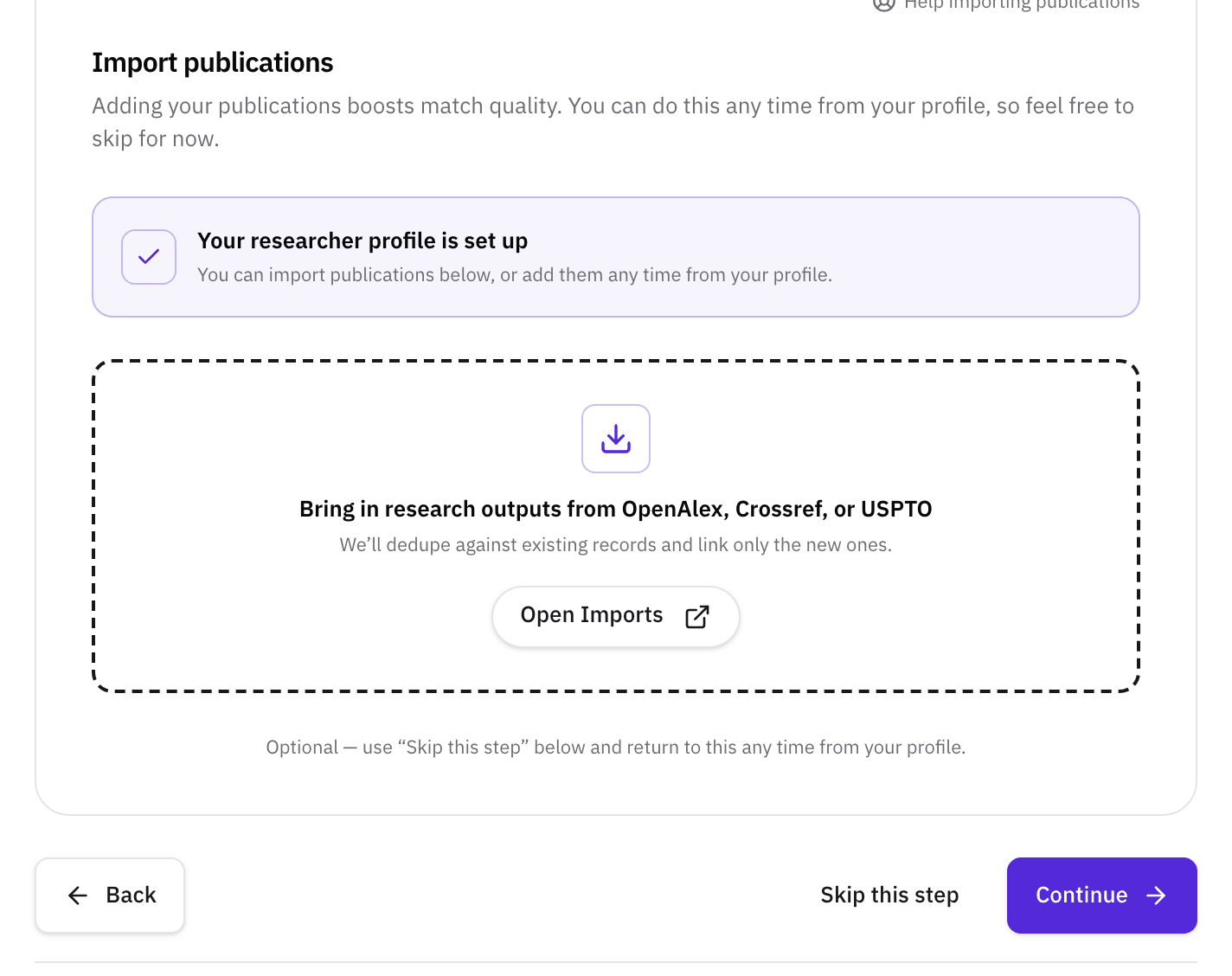
When it's done, the step says Your researcher profile is set up, and Open Imports takes you to the importers.
If you skipped this step during sign-up, the Imports page asks you to link your researcher profile first. Every importer needs it, because it's the record your papers and patents attach to.
Step 2Open the Imports page
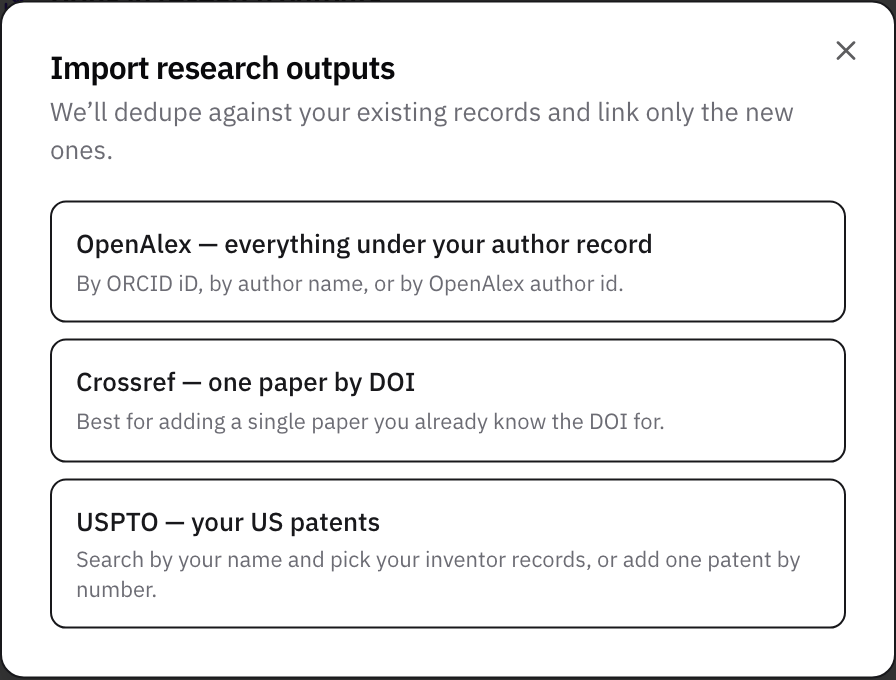
Go to Profile and click Open Imports. The page lists your past imports, and Add an import opens the three sources:
- OpenAlex, for everything under your author record
- Crossref, for one paper by its DOI
- USPTO, for your U.S. patents
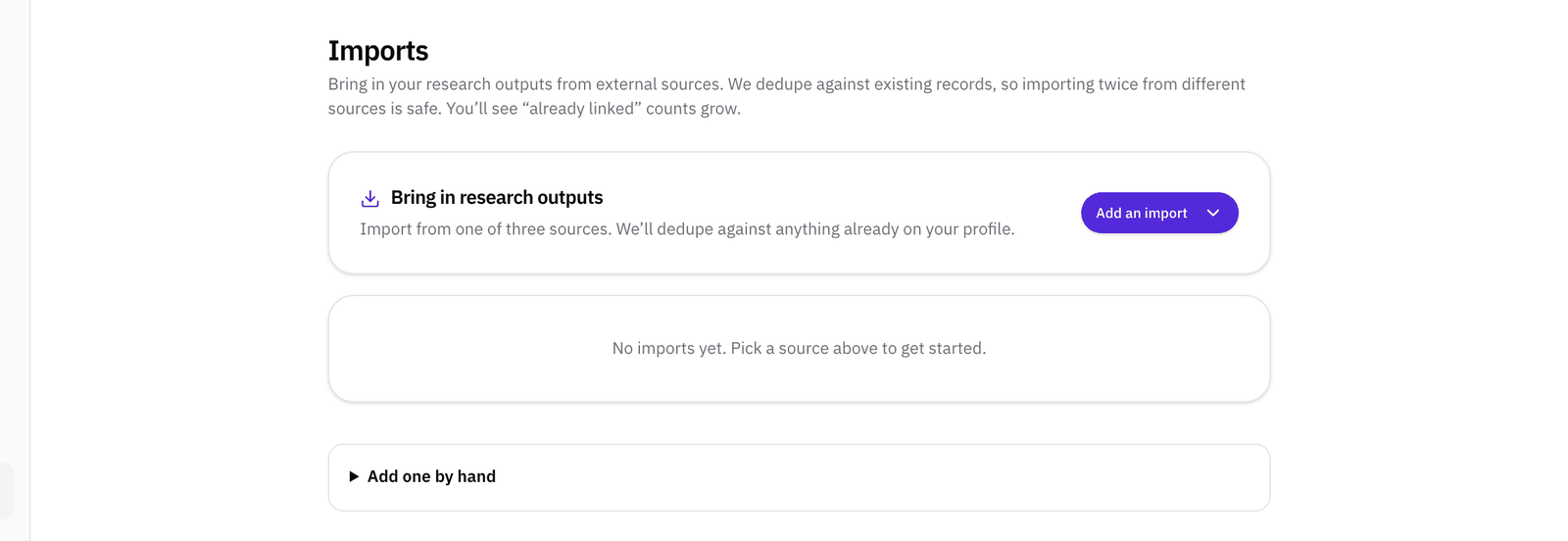
You can import from more than one source. Each import checks what's already on your profile and adds only what's new, so running two imports that overlap is safe.
Step 3Import your papers from OpenAlex
OpenAlex is an open catalog of scholarly work. Choose it, then pick how to find yourself under Look up by:
- By ORCID iD lists the OpenAlex author records that carry your iD, so you can tick the ones that are you. It's the best first import.
- By author name shows the OpenAlex author records that match the name, so you can pick yours.
- By OpenAlex author id is for when you already know your id, which starts with A. A full openalex.org link works too.
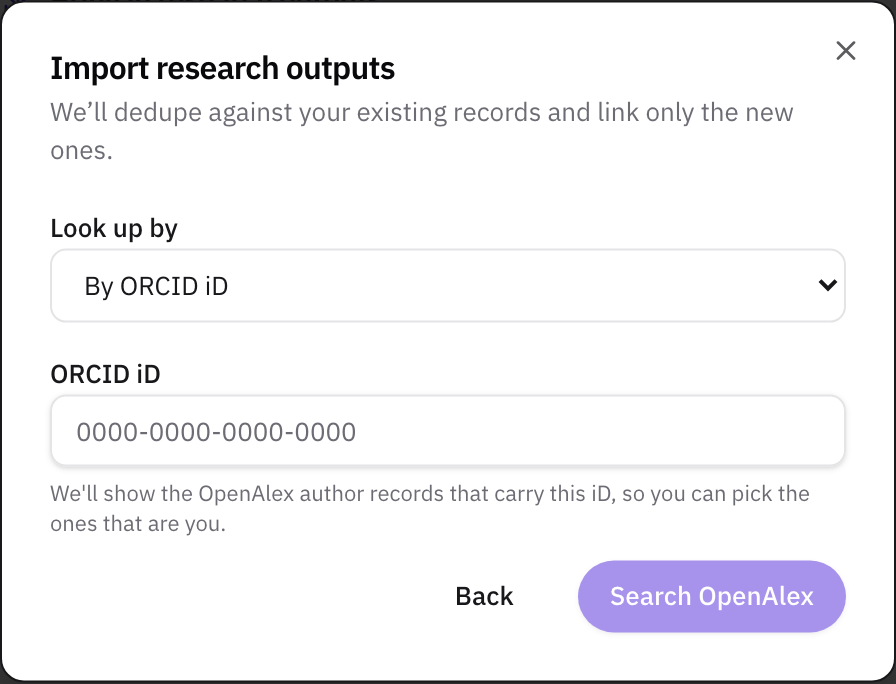
An iD can end up on records that aren't yours, because some papers carry the wrong iD. When an iD is on many records, the list says so. ORCID's public test iD, below, is on 41. Tick only the records with your own name and work, then click Queue import.
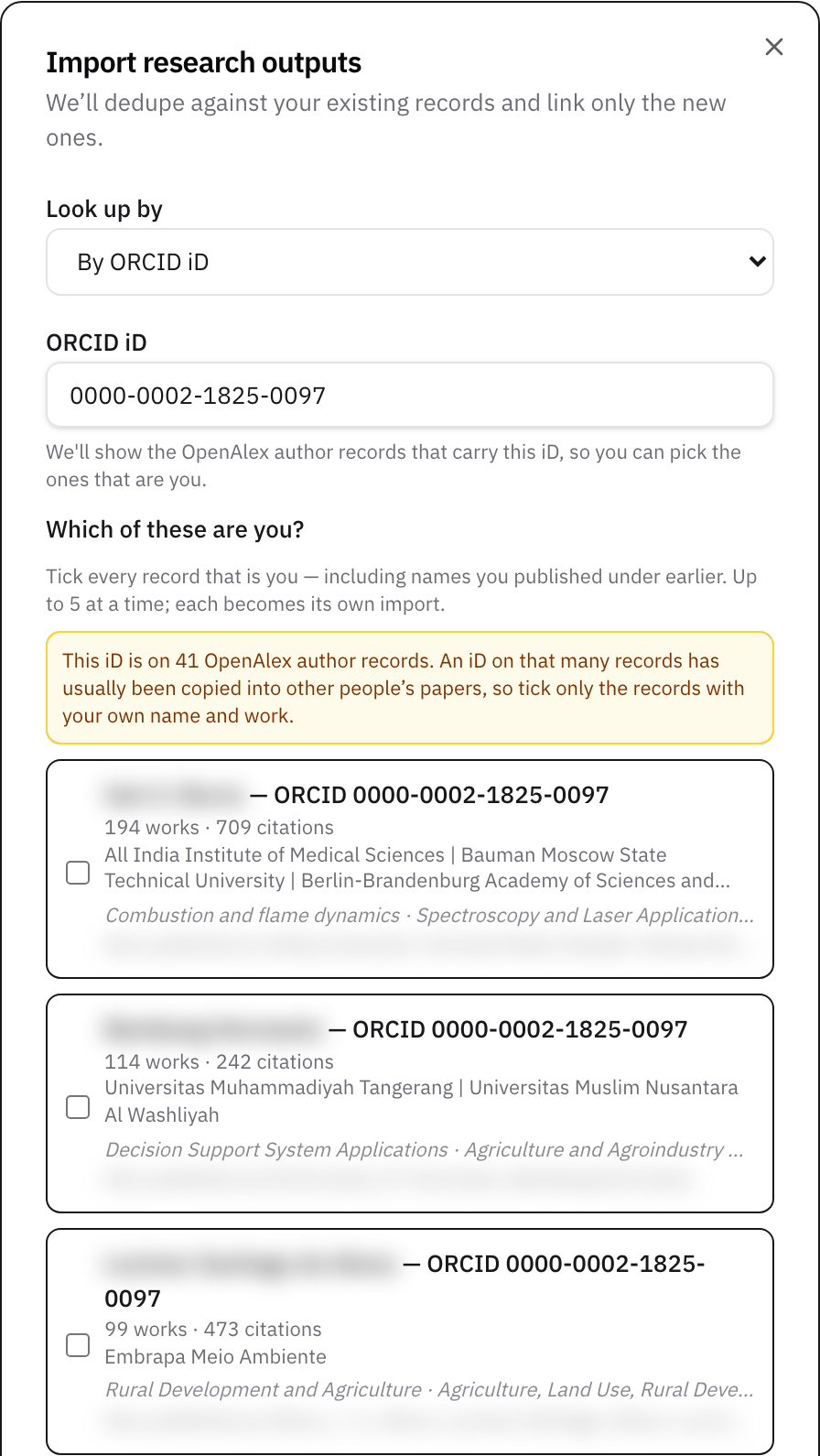
With By author name, you get a list headed Which of these are you? Each record shows its works, citations, institutions, and topics. Tick every record that's you, including any under a name you published with earlier, then click Queue import.
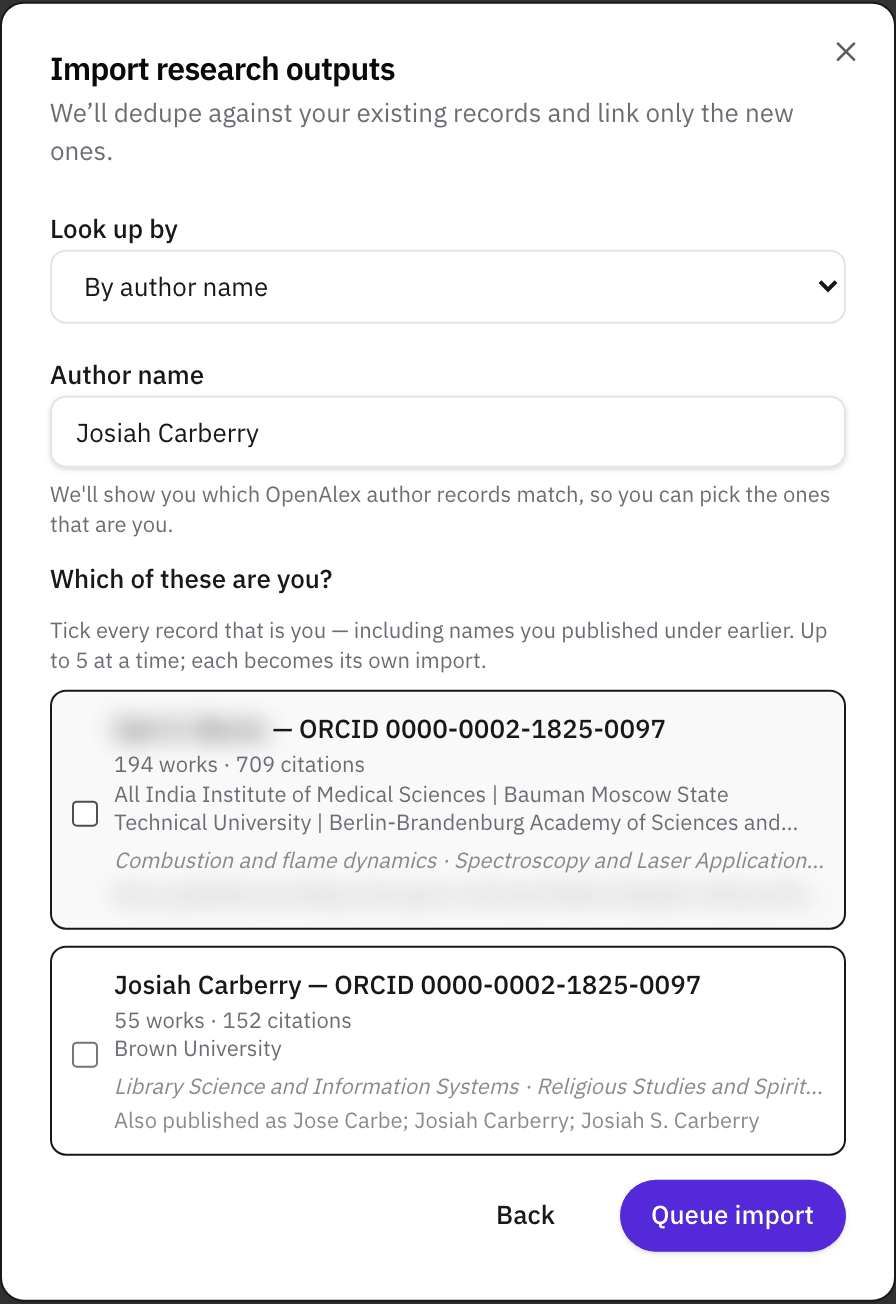
Check the institutions and topics, not only the name. Author records sometimes get merged, and a record can carry your ORCID iD and still hold someone else's papers, like the first one above. If a record lists places you've never worked, leave it unticked.
Step 4Add a single paper by DOI
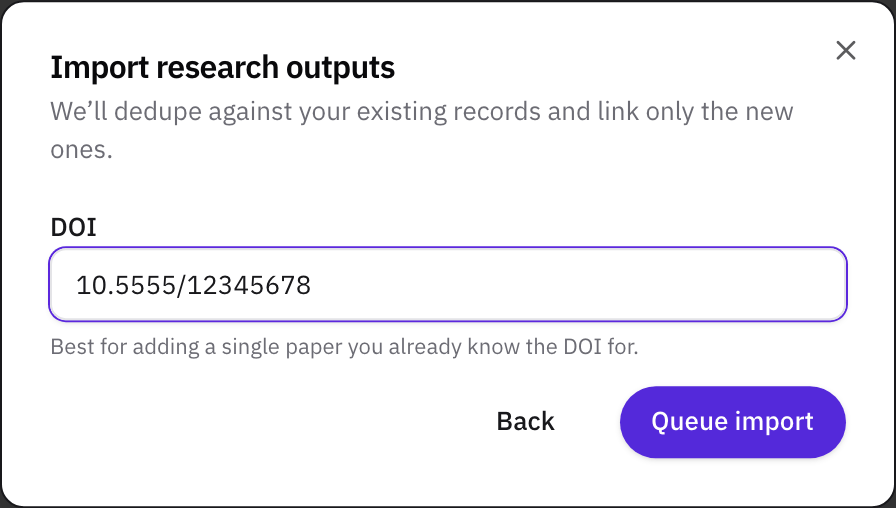
For one paper, choose Crossref and paste its DOI, the identifier that starts with 10. Use it for a paper the OpenAlex import missed or one that's just come out.
Step 5Import your patents from USPTO
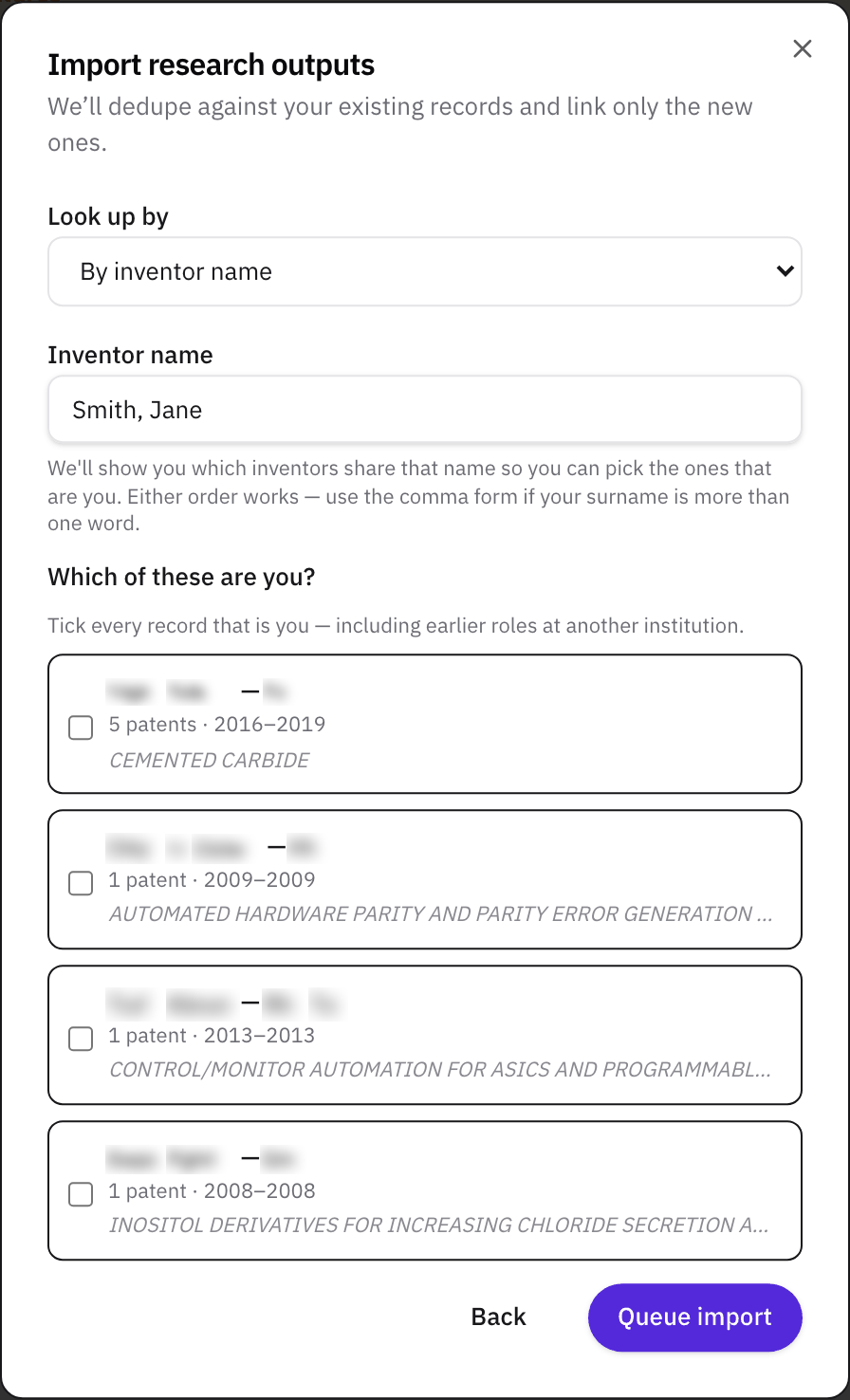
Choose USPTO. By inventor name fills in your name and lists the inventor records that share it, with where each inventor was, how many patents they have, the years, and a sample title. Tick every record that's you, including one from an earlier job in another state, and queue the import.
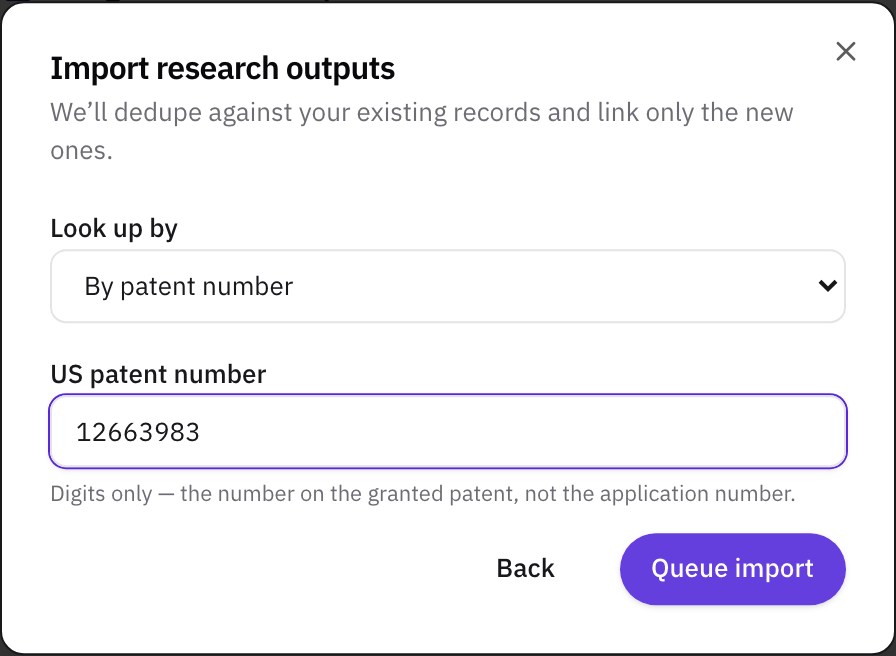
By patent number adds one granted patent. Enter the number on the patent itself, not the application number.
The patents come from the USPTO's Open Data Portal, which covers patents granted from about 2001, with gaps for 2001 to 2005. If the name search misses one of yours, for example a patent granted under another form of your name, add it by number in step 7. A patent the portal doesn't have can't be added either way.
Step 6Follow the import
Click Queue import, and the platform processes it within a few minutes. The import appears on the Imports page as In progress, then Done with how many items were new and how many were already linked to you. If something goes wrong, it says Failed and why.
You can leave the page while it runs. Your papers and patents appear on your profile when it's done.
Step 7Add anything still missing by hand
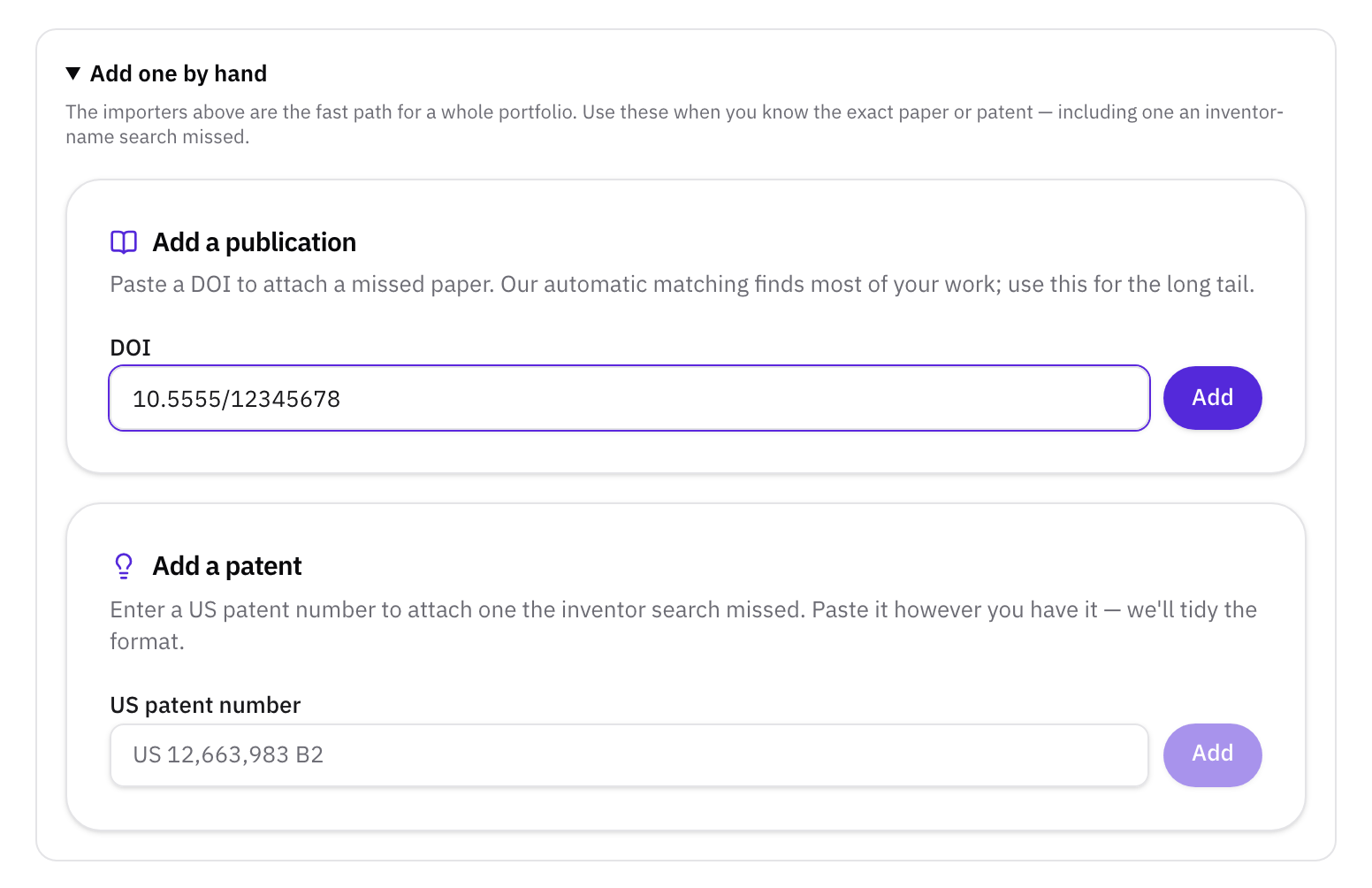
At the bottom of the Imports page, Add one by hand takes a DOI or a U.S. patent number and attaches that one item straight away. It's the fix for a paper or patent the importers didn't find, for example one filed under a name you no longer use.
What to read next
With your work on your profile, write the bio that tells a company what you could do for them: How to write a researcher bio that gets you found.
Related
- WalkthroughBe found: your expertise, publications, patents, funding, and the patents that cite your work
- HelpHow to write a researcher bio that gets you found
- HelpWho cited my paper? Find the patents that cite it
- ComparisonResearchGate vs Google Scholar vs ORCID vs Helikon: which researcher profile should you keep up?