Help center · Tutorial · 5 steps
How to write a researcher bio that gets you found by industry
- About 15 minutes
- Free plan and up
- Checked in the app on
A researcher bio that gets you found by industry says, in plain words, which problems you work on and what you could help a company do, because that's what a company looking for help searches for.
Three things make a bio work anywhere, on a lab page, a grant, or a conference program:
- Name the problem before the method. "Why lithium metal batteries fail early" means something to an engineer. "Interfacial phenomena" doesn't.
- Say what you could do for a partner. One sentence about testing, design, or analysis you could take on turns a description into an offer.
- Be specific enough to rule things out. A bio that could describe a hundred people won't be found by anyone.
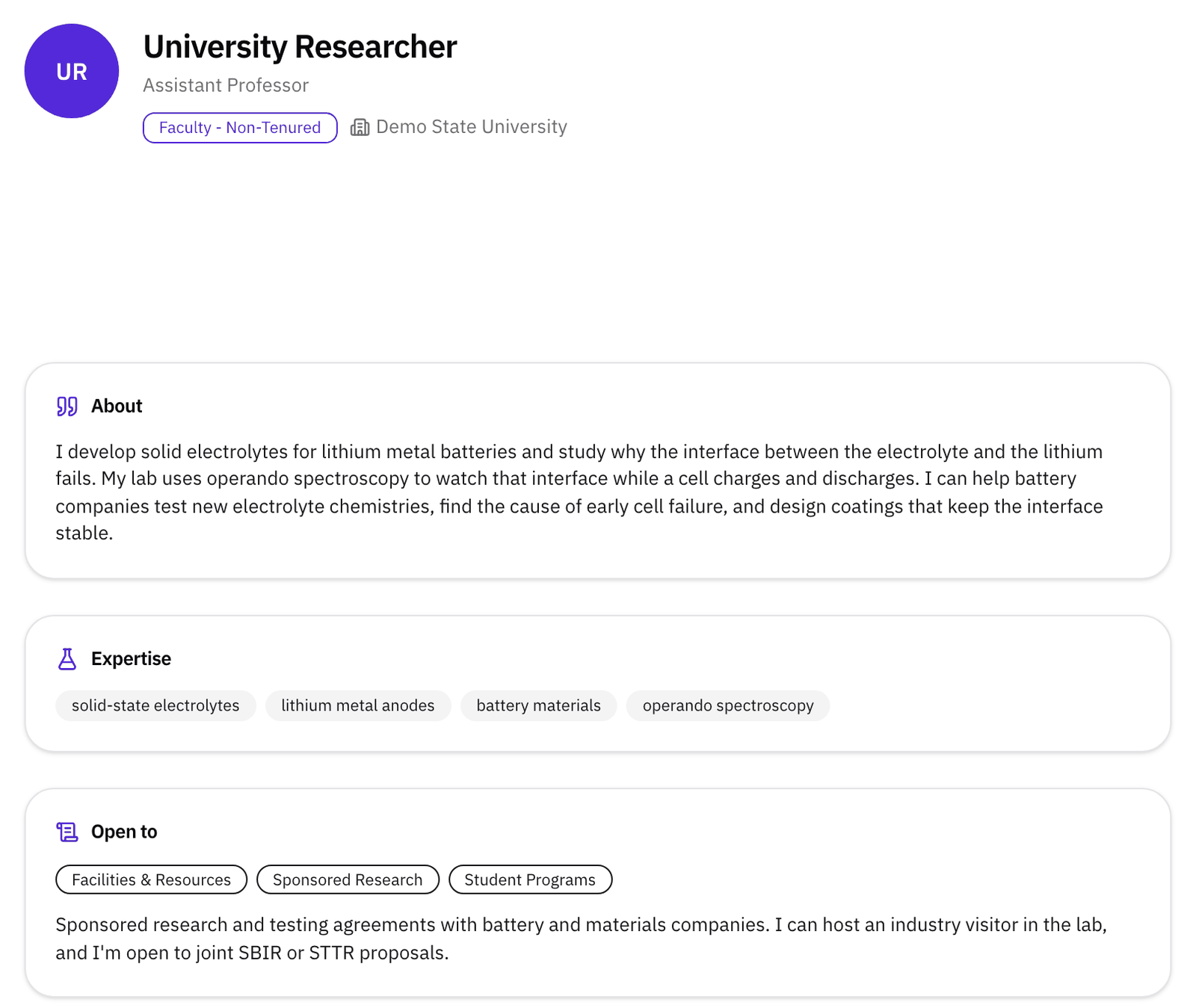
Here's the difference. A generic version: "Their exploration of solid-state electrolytes and lithium metal anodes centers on advancing battery materials through operando spectroscopy." A version that gets found: "I develop solid electrolytes for lithium metal batteries and study why the interface between the electrolyte and the lithium fails. … I can help battery companies test new electrolyte chemistries, find the cause of early cell failure, and design coatings that keep the interface stable."
On Helikon, the bio does a second job: matching reads it. Your bio and keywords decide which researchers, companies, and funding calls the platform puts in front of you, and whether you come up when someone else searches.
Step 1Write the bio
Go to Profile and find Bio & collaboration preferences. Write two to four sentences: what you work on, how you do it, and what you could do for a partner. It needs at least 120 characters for matching to use it.
First person or third person both work. The profile shows the bio exactly as you write it.
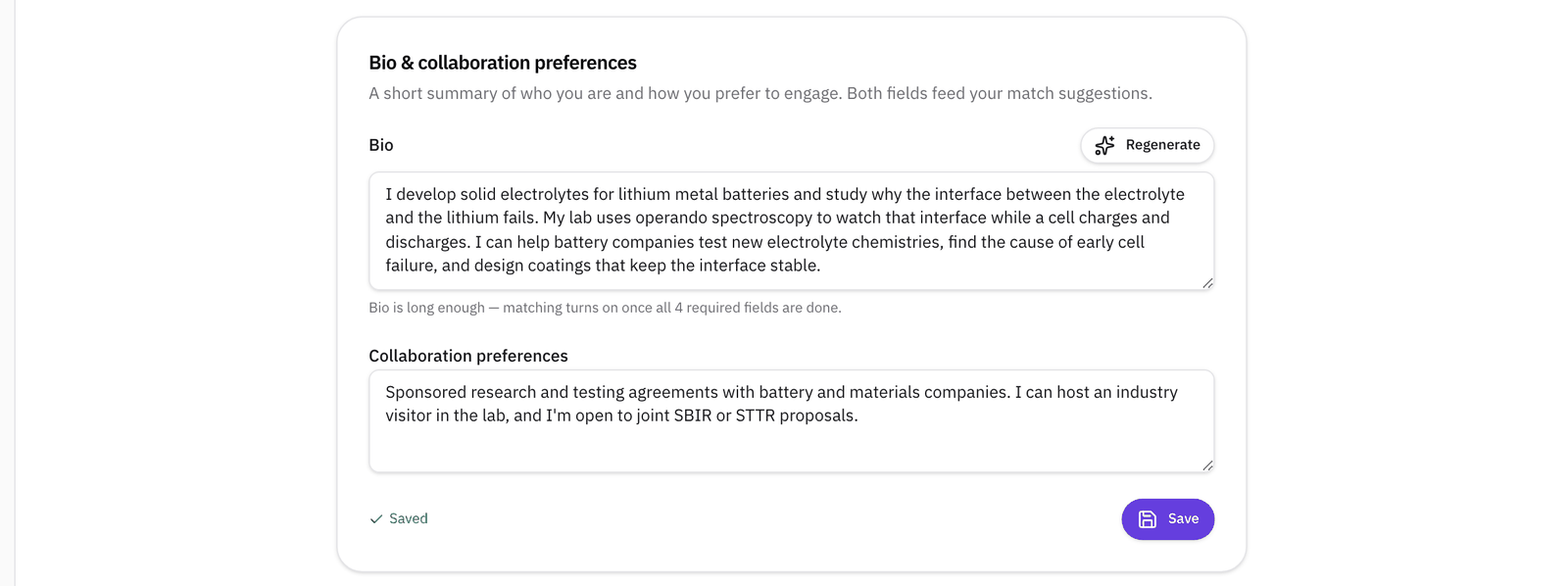
Under the bio, Collaboration preferences is for how you'd like to work with people: the kinds of agreement you're open to, whether you can host a visitor, or whether you'd join a small-business proposal. It feeds your matches too.
Step 2Use Generate as a first draft, not a final one
Generate writes a draft from your keywords, your title, and the work on your profile. Regenerate gives a differently worded one.
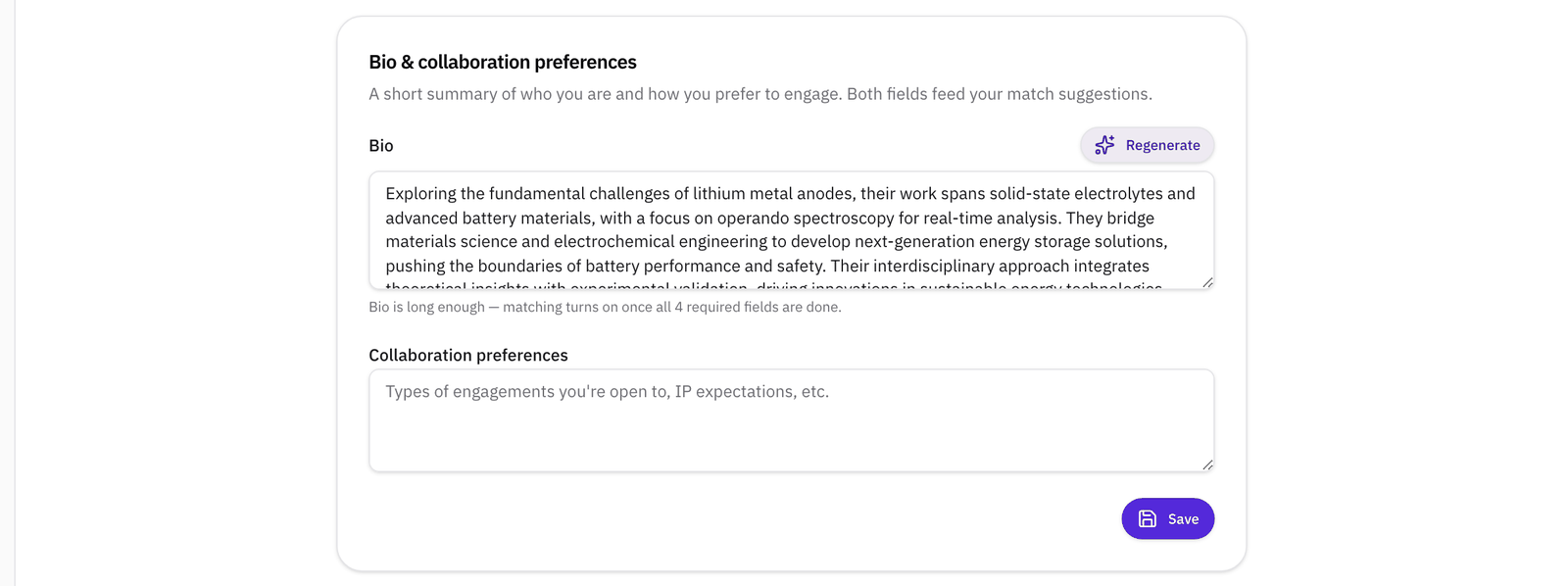
A draft is a starting point. Rewrite it in your own words, cut phrases like "pushing the boundaries", and check every sentence, because a draft can add things you didn't say. Nothing is saved until you click Save.
Step 3Add specific expertise keywords
The Expertise section takes keywords that describe your research. Matching needs at least three, and you can add up to 20. Type one and press Enter or a comma to add it.
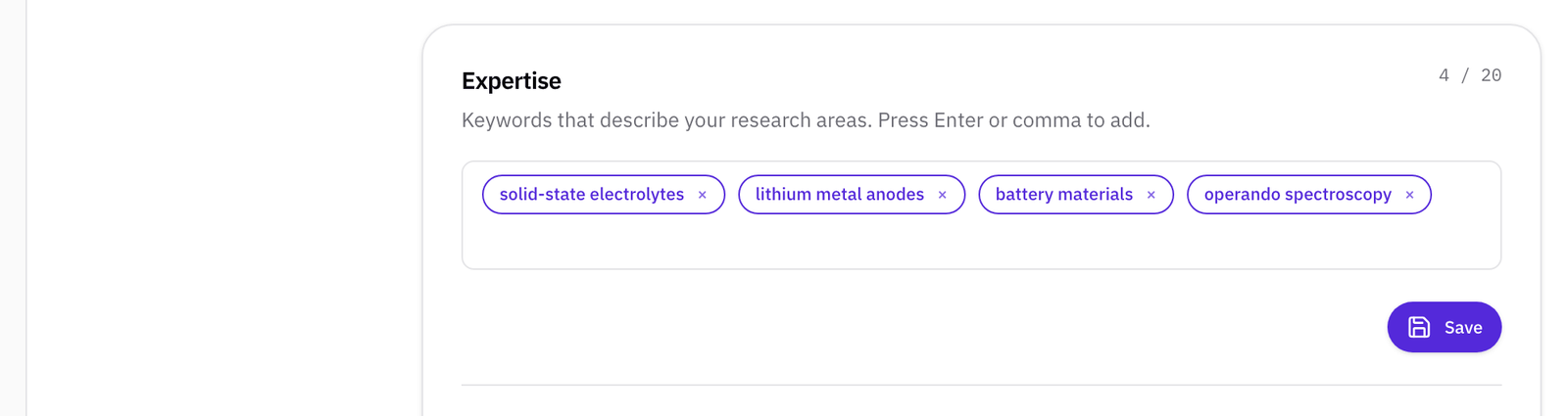
Pick the terms a company would search for: "solid-state electrolytes" rather than "chemistry". Five to ten specific keywords usually work better than three broad ones.
Step 4Say which partnerships you're open to
The Open to section of your profile lists the kinds of partnership you can say you're open to: sponsored research, commercial work, licensing, investment, advisory roles, student programs, nonprofit work, shared facilities, standards work, and mentoring. Tick each one that's true and click Save. You picked these during sign-up too, and you can change them here any time.
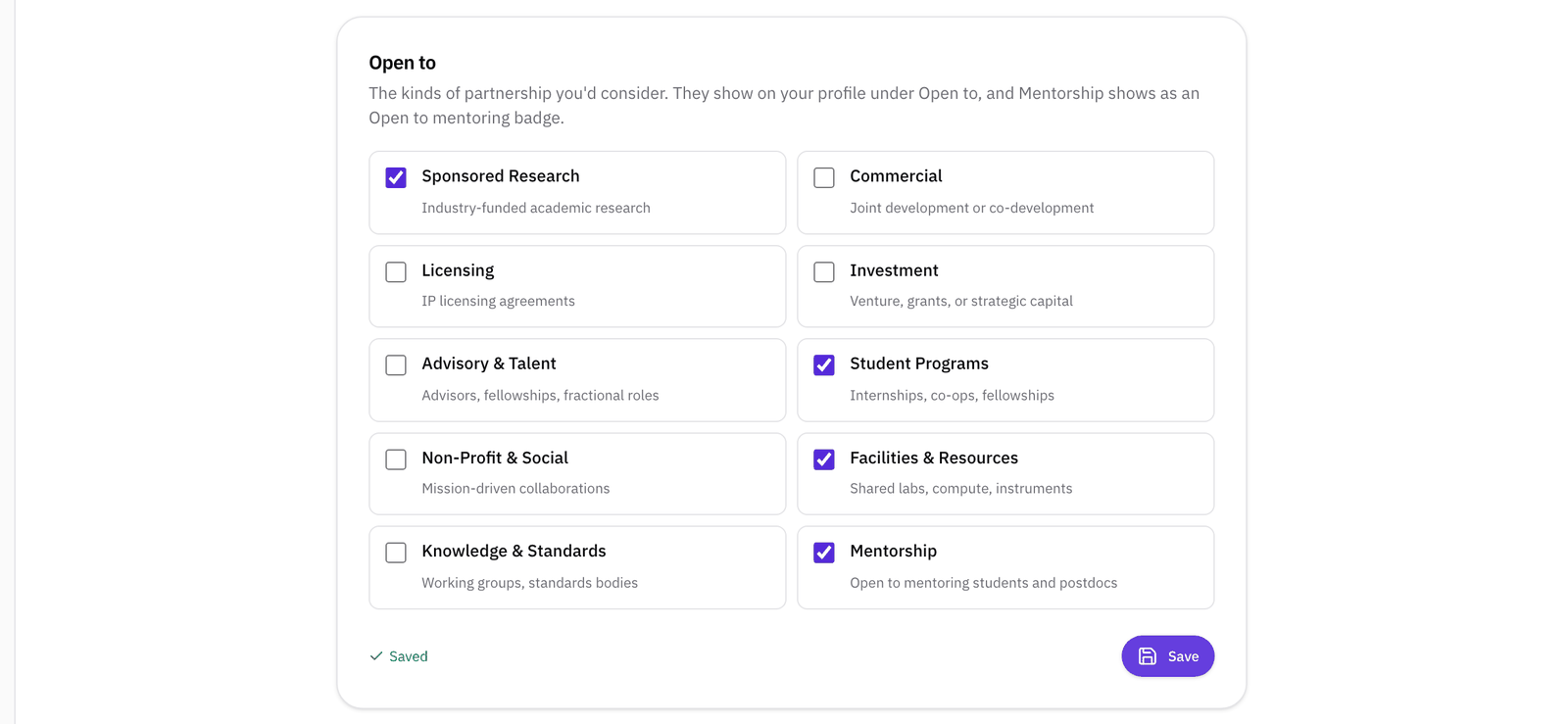
They appear on your public profile under Open to, and your match suggestions and the AI collaboration analysis read them alongside your bio. Mentoring shows as an Open to mentoring badge on your card instead.
Step 5Check what matching needs, and what others see
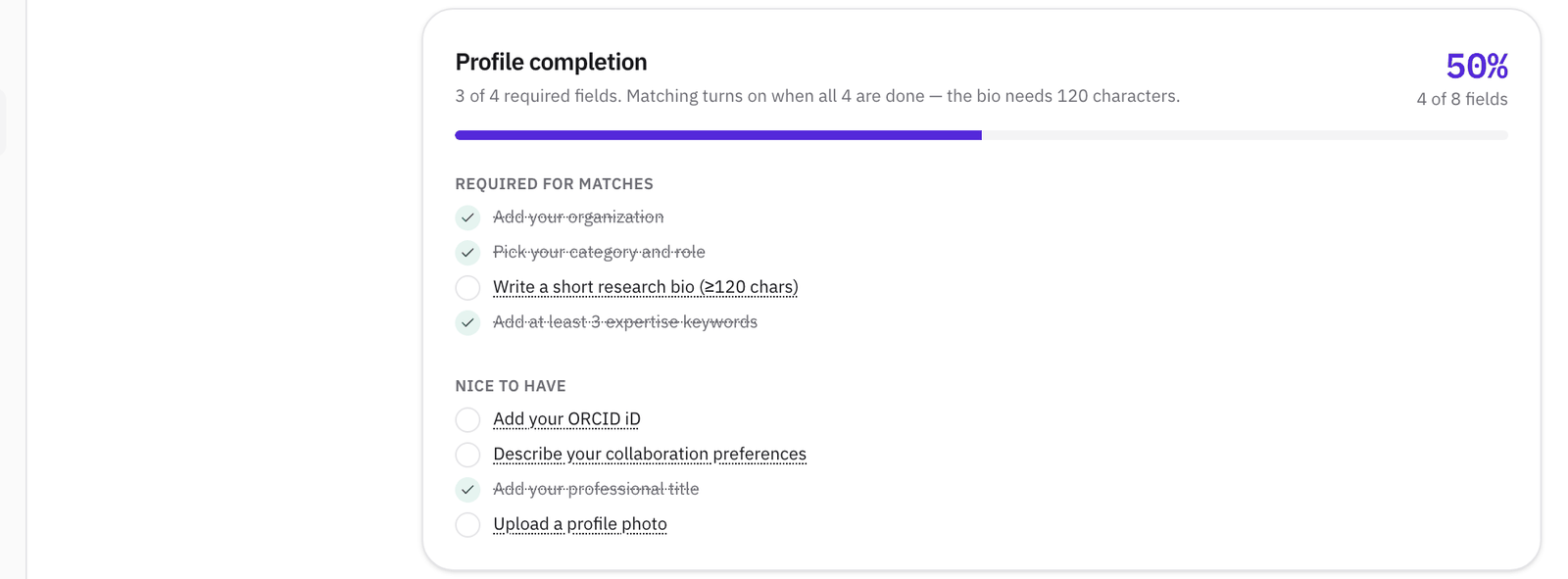
The Profile completion card at the top of your profile lists the four things matching needs: your organization, your category and role, a bio of at least 120 characters, and at least three keywords. When all four are ticked, your matches start.
Then click View as others see it on your profile. This is what a company sees when your name comes up.
What to read next
If your papers and patents aren't on your profile yet, read How to create your researcher profile and import your publications and patents. To see which companies already build on your work, read Who cited my paper? How to find the patents that cite your research.
Related
- WalkthroughBe found: your expertise, publications, patents, funding, and the patents that cite your work
- HelpCreate a researcher profile and import publications
- HelpHow to find research funding opportunities
- HelpWho cited my paper? Find the patents that cite it
- ComparisonResearchGate vs Google Scholar vs ORCID vs Helikon: which researcher profile should you keep up?