Use case · Match
Keep up with the researchers, organizations, and technologies you care about
For anyone whose field moves faster than their reading list.
Free plan · No credit card required
You know the 30 groups whose next paper you'd want to read the week it comes out. Keeping up means a saved search in one database, a citation alert in another, a folder of PDFs, and a spreadsheet of company names with a column called “last checked.” Each of those is fine. Together they're a second job.
What the platform replaces today: one place to follow and save the research of people, organizations, and technologies you care about.
How it works
A worked example. A materials scientist at a mid-sized company wants to keep up with about 40 groups in her area, the two universities across town among them, two patent classes, and a handful of companies whose assignee names keep appearing.
Step 1: Follow researchers
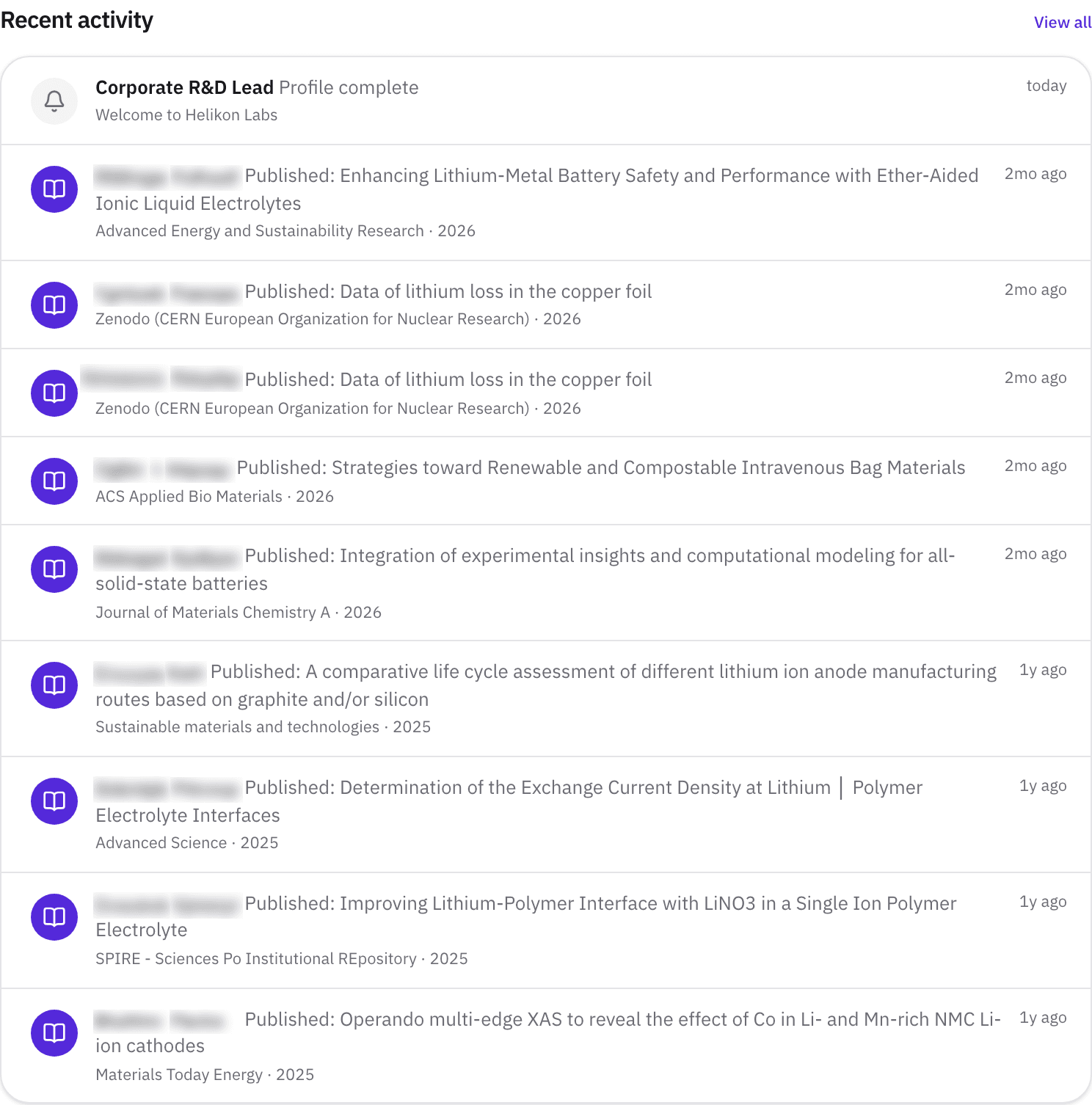
Follow any researcher in the corpus or any member, from a card or a profile: 50 on Free, 100 on Pro, unlimited on Team and above. Their most recent publications, by year, appear in the Recent activity feed on your dashboard and under Connect → Activity.
Some of the 40 may be unclaimed profiles, following works the same either way.
Step 2: Save anything with your own tags
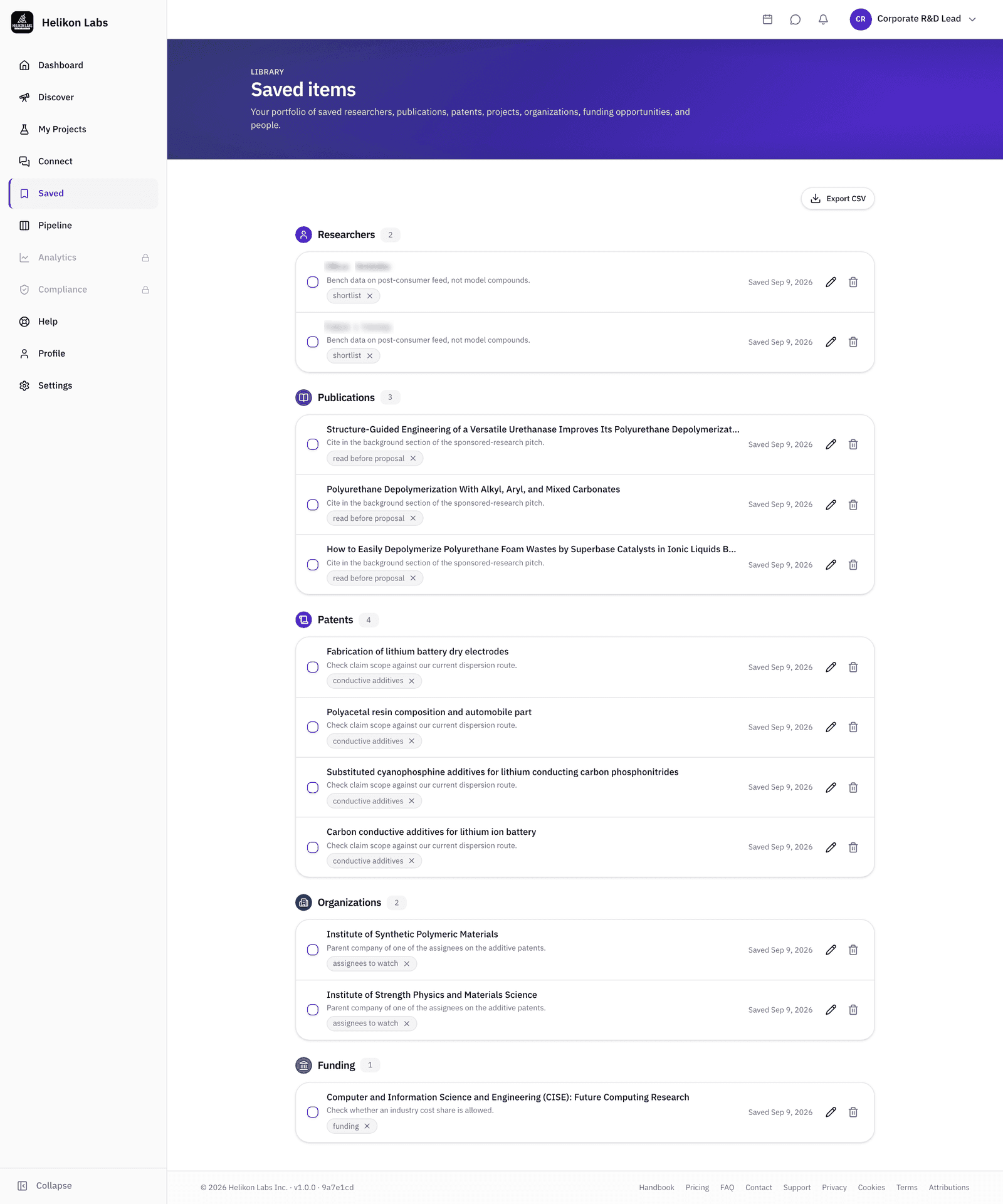
Save papers, patents, organizations, projects, funding calls, and people, each with a private note and tags. Tags are your taxonomy, not the platform's, so “pitting resistance,” “competitor,” and “read before proposal” all work. On Pro, export your saved list to CSV.
Two patent classes become a tag each, the companies go under “assignees to watch,” with the parent company noted on each.
Step 3: Bookmark your searches
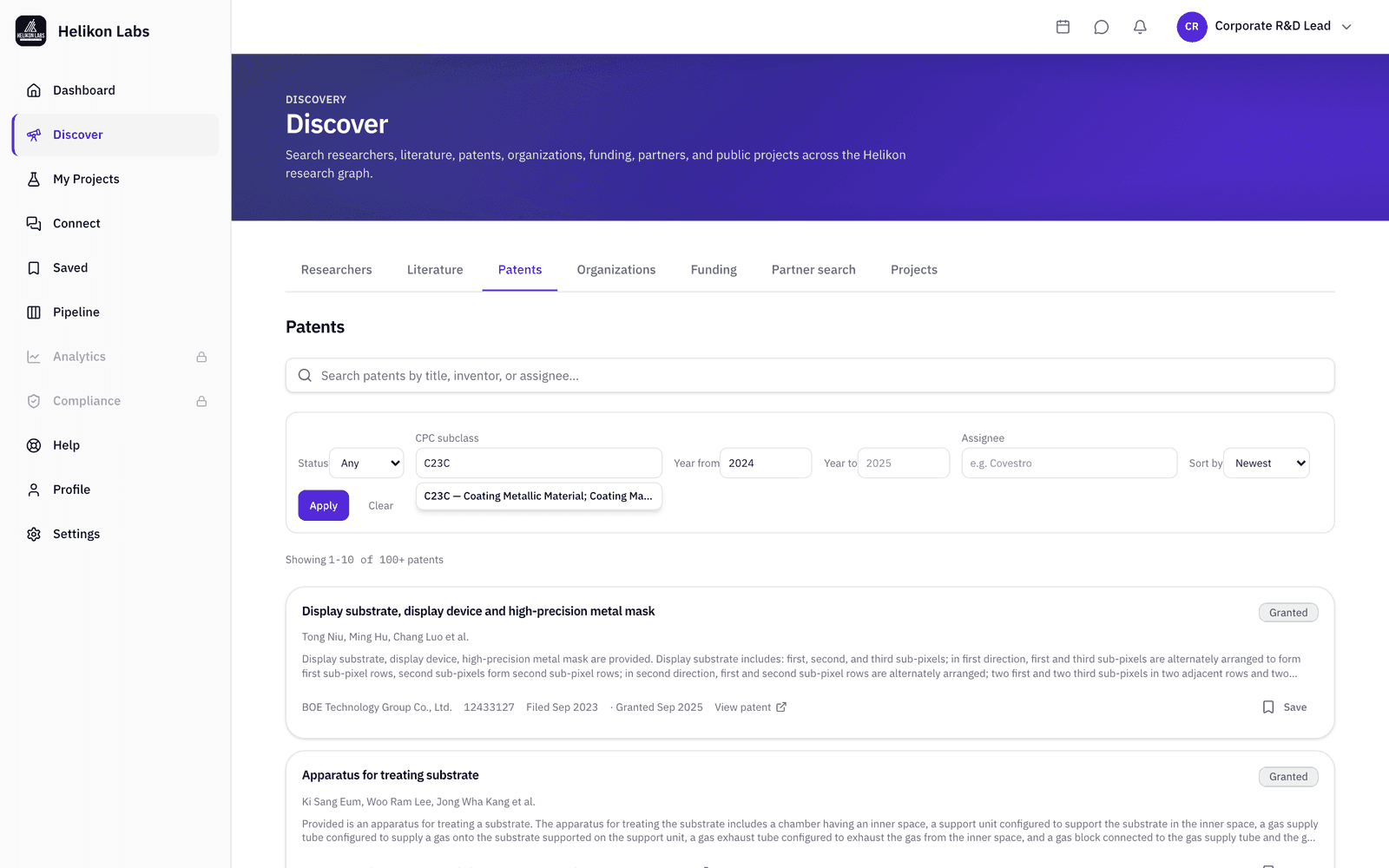
Every Discover filter lives in the page URL. Set up a Patents search for a CPC subclass in the last year, a Literature search for a subject area and a citation floor, and bookmark both. Rerun them on your own schedule, and send the URL to a colleague to show them exactly what you're seeing. On the Funding tab, Pro and higher can save a Browse search, and its new calls arrive in your weekly funding email.
Step 4: Choose what reaches your inbox
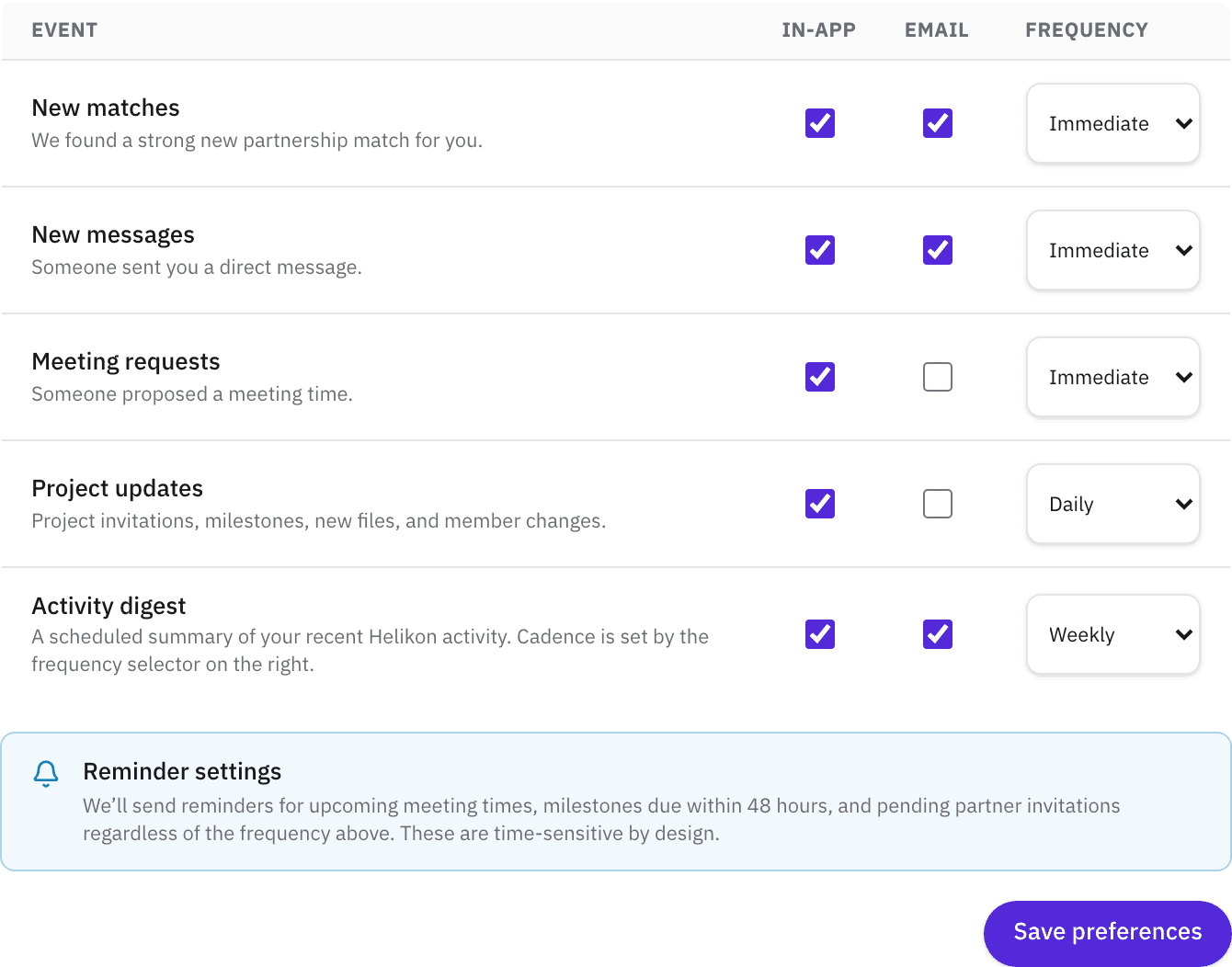
In Settings → Notifications, set Immediate per category, or choose a daily or weekly Activity digest. The digest carries what happens to you on the platform: new followers, messages, meeting requests and confirmations, project and milestone events. Followed researchers' new publications stay on your dashboard. Two emails have their own switches: Funding matches, every Monday, with new calls that match you and changes to calls you've saved, and New matches, with researchers newly suggested for you, weekly or daily.
What you’ll see
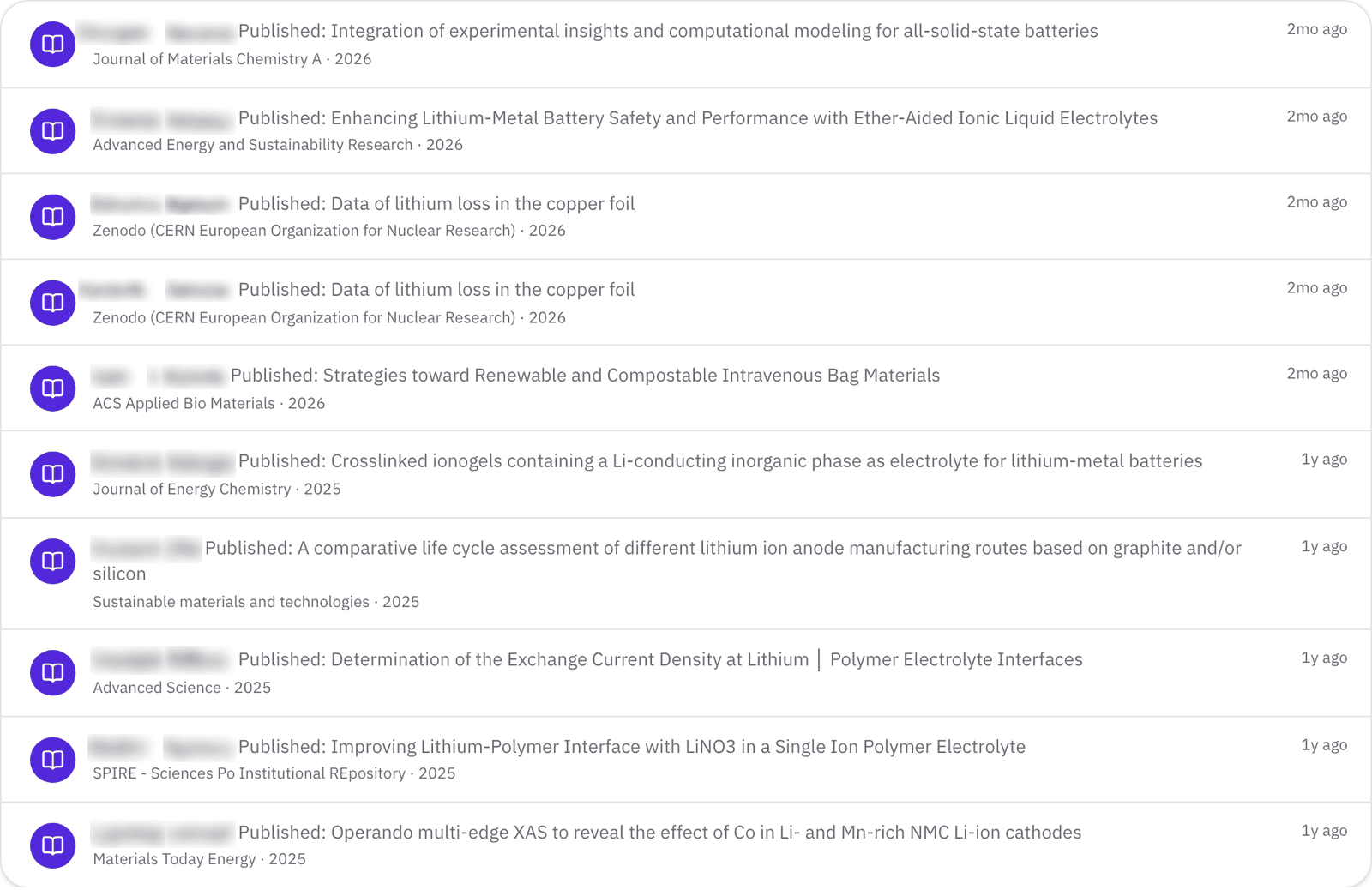
- 1. Feed rows. A followed researcher's recent publication, with its year.
- 2. Open. The researcher's profile, their paper is on its Research outputs tab, with abstract, DOI, and Cited by patents in the panel.
- 3. Save. From the profile or the paper's panel, with a note.
- 4. Connect → Activity. The same feed, full length.
What’s on Free, and what Pro adds
| Free | Pro | Team | |
|---|---|---|---|
| Follows | 50 | 100 | Unlimited |
| Saved items with notes and tags | 50 | Unlimited | Unlimited |
| Saved-items CSV export | No | Yes | Yes |
| Saved Funding searches with weekly alerts | No | 25 | 25 |
| Immediate per category, or a daily or weekly Activity digest | Yes | Yes | Yes |
Match
Watching a field is how your next Match starts before you need it. Read about the phase →
- Will I get an email when someone I follow publishes?
- Not yet. New publications from the people you follow appear on your dashboard and under Connect → Activity. The email digests cover activity on your account (followers, messages, meetings, projects), not the publication feed. New funding calls and newly suggested researchers each have their own email.
- How do I get back to a search I've run?
- A Partner search is saved to your account when you open its results, and it reopens with the same list of matches however long you leave it. Discover filters live in the page URL, so bookmark a filtered Patents or Literature search and rerun it. Save the individual patents and papers you want to keep, with your own notes and tags. On the Funding tab, Pro and higher can save a Browse search, and its new calls come in the weekly funding email.
- Can I follow an organization?
- Save it. Organization pages have a Save button, and a saved organization sits in your saved items with your notes. Following, in the sense of a feed, is for people.
Follow the research groups you care about.
Free plan · No credit card required