Help center · Tutorial · 7 steps
How to use your specific aims page to find an SBIR or STTR university partner
- About 15 minutes
- Free plan and up
- Checked in the app on
Your specific aims page is already a good search query for an SBIR or STTR partner: paste it into Partner Search and you get researchers ranked by how closely their published work and patents match your aims, with the reasons for each match, and you can then narrow the list to the universities you'd consider. You need a free account and your aims page, or any description of the work of up to 5,000 characters.
Before you start: this tutorial uses a sample specific aims page for an NIH STTR Phase I in CAR-T cell manufacturing. It describes no real company.
Step 1Paste your aims into Partner Search
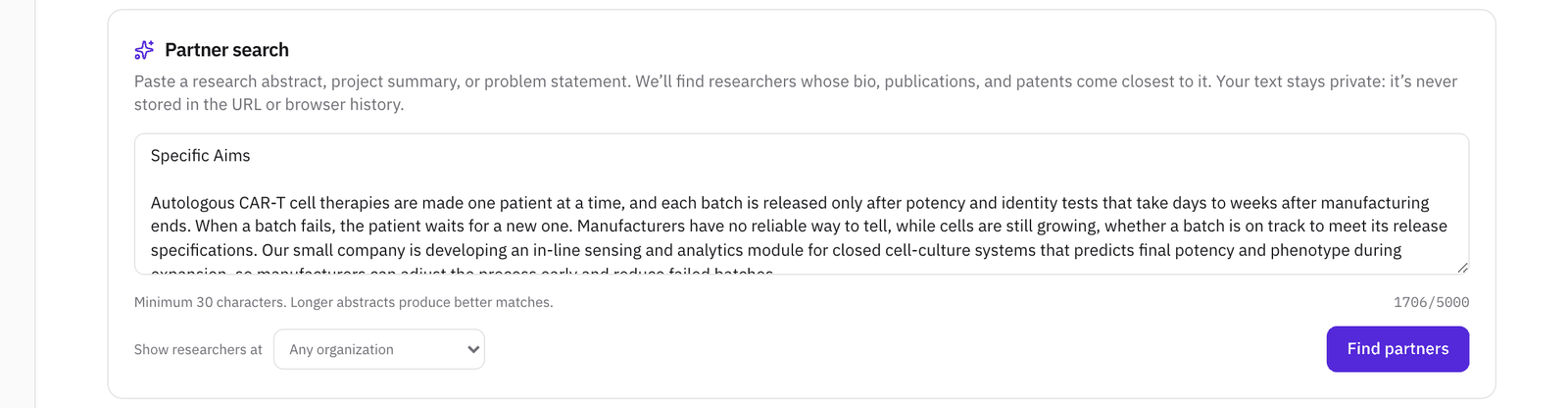
Open Discover from the left sidebar and choose the Partner search tab. Paste the whole aims page into the box, from the title to the last aim. Leave Show researchers at on Any organization for the first search, and click Find partners.
Paste the page as it is. The search reads the whole description, so the problem statement and the expertise you say you need both count. The text you paste isn't stored in the link or your browser history.
Step 2Read why each researcher matched
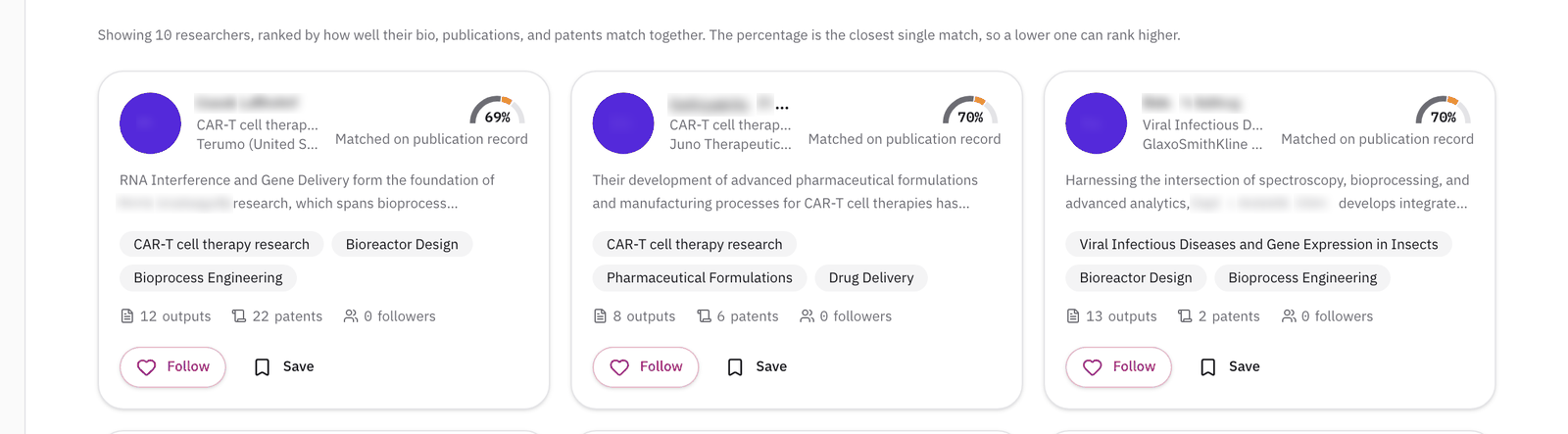
Each result card shows the researcher's main research topic and current organization, a match percentage, and what the match was found in: their publication record, their patent record, or their profile. Under that is a short summary of their work, their topic tags, and how many research outputs and patents they have.
Two things to know when you read the list:
- The order combines several measures of fit, and the percentage shows the single closest one. So a researcher at 69% can sit above one at 70%. Read the top of the list as a group, not a strict ranking.
- The list includes company scientists as well as academics. For an STTR, the partner has to be a research institution, usually a university, so use step 3 to focus on the universities you'd consider. Company scientists who work on the same problem are still worth knowing about.
Step 3Narrow the list to universities
To see only academic researchers, set Show researchers at to Universities and institutes and run the search again. Check the organization on each card before you rely on it: it comes from the public record, and now and then it's out of date.
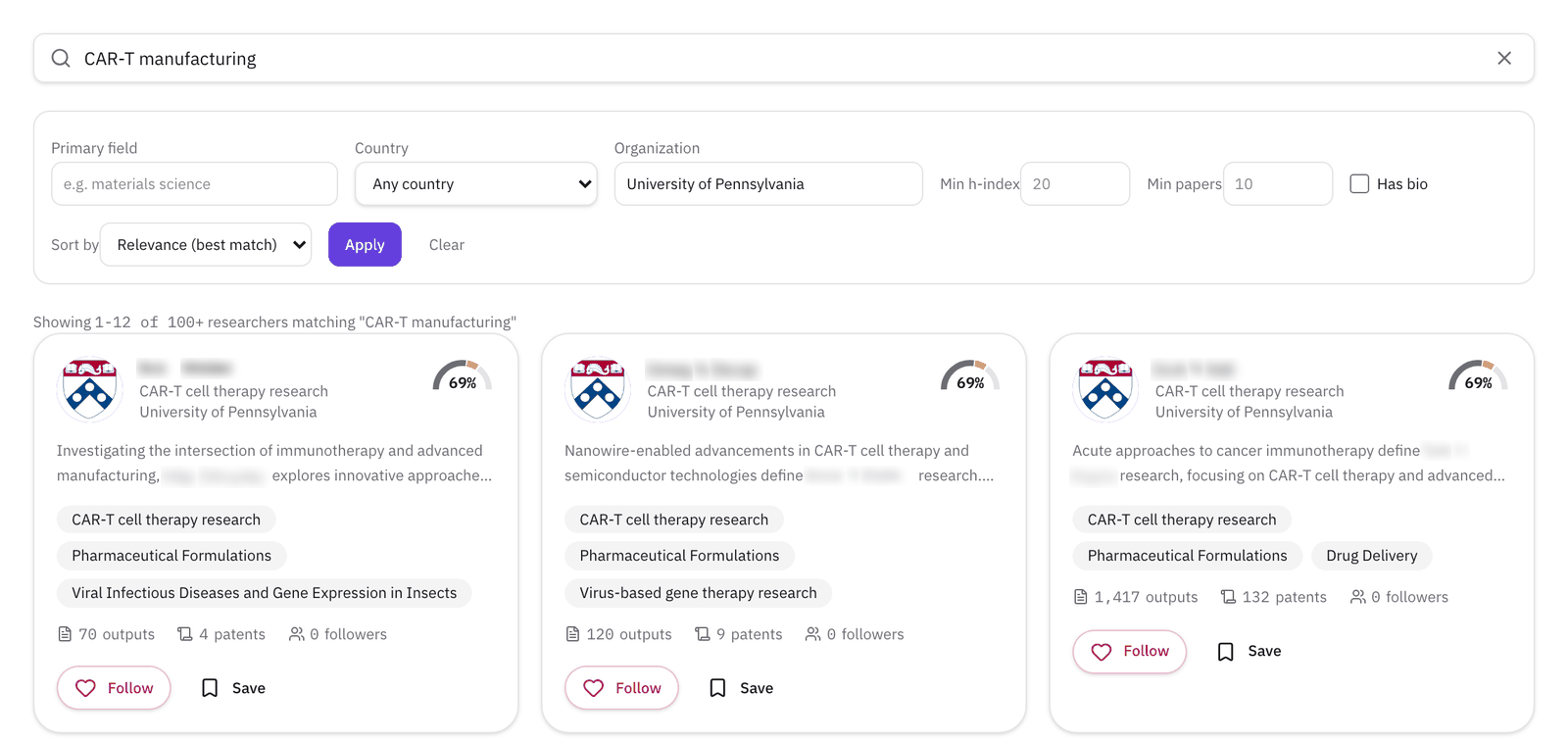
To look inside one university, take the key phrase from your aims, for example "CAR-T manufacturing", and run it in the Researchers tab of Discover. In Organization, start typing a university's name, pick it from the list, and click Apply. You get that university's researchers ranked by how closely their work matches the phrase.
Do this for each university you'd consider, a university near you, one whose papers you already cite, or one you found in step 2. The other filters (Primary field, Min h-index, Min papers, Has bio) narrow the list further.
Step 4Check who's been a small-business partner before
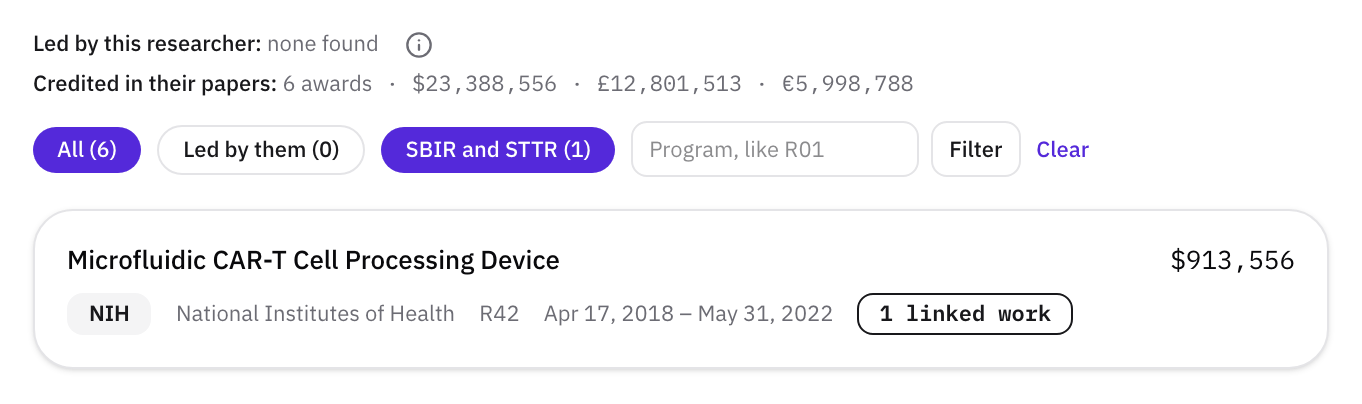
Open a researcher's profile and go to the Funding tab. Two lines at the top separate the awards they led, as the funder's named principal investigator, from all the awards credited in their papers. Below, each award shows the funder, the program code, the dates, and how many of their papers acknowledge it, and a PI badge marks the ones they led.
Click SBIR and STTR to see only small-business awards. At NIH, an STTR award carries a code starting R41 or R42, and an SBIR award R43 or R44. A paper that acknowledges one tells you the group has already worked under a small-business award and knows the paperwork. In the example below, a university researcher's papers acknowledge an NIH STTR Phase II for a microfluidic CAR-T cell processing device.
The profile's Match score panel shows how this researcher fits your own profile, and Why? See the AI analysis provides an analysis of the collaboration fit: what each of you brings, where your work overlaps, and what to check before you reach out.
Step 5Set up the proposal as a project
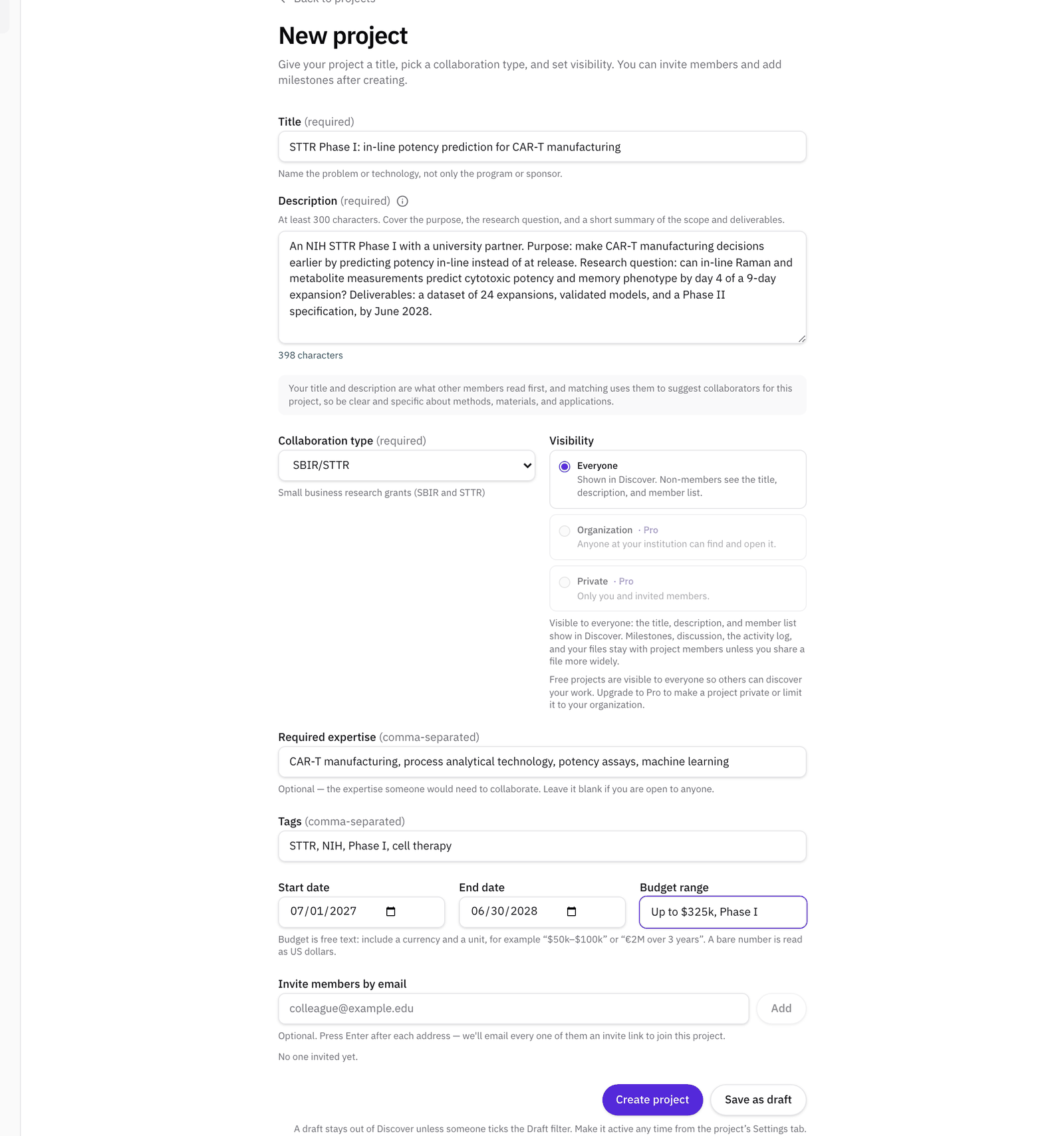
When you've found the group you want to work with, set up the proposal as a project, so the partner, the files, and the deadlines live in one place. Your profile needs to be complete first: your organization, your role, at least three expertise keywords, and a bio of at least 120 characters. The platform tells you what's missing.
Open My Projects, click New project, and fill in:
- Title and Description: the description needs at least 300 characters. Cover the purpose, the research question, and a short summary of the scope and deliverables. The title and description are what other members see in Discover, and what matching reads to suggest collaborators.
- Collaboration type: choose SBIR/STTR from the Sponsored Research group.
- Start date and End date: the period of performance you're proposing.
- Budget range: free text, for example "Up to $325k, Phase I".
- Required expertise and Tags, so the project is easy to find later.
Click Save as draft to keep the project out of Discover while you work, or Create project to make it active. For recording the agreement, its dates, and the milestones once the award comes through, see Set up an industry-sponsored project.
Step 6Invite the university's PI
Open the project's Members tab and click Invite member. Choose By email, enter the PI's address, pick a role, and add a short note if you like. The note goes in the invitation email.
Editor suits a co-investigator: they can upload files, delete anyone's files, and manage milestones, but they can't invite people or change the project's settings. The dialog shows what each role can and can't do.
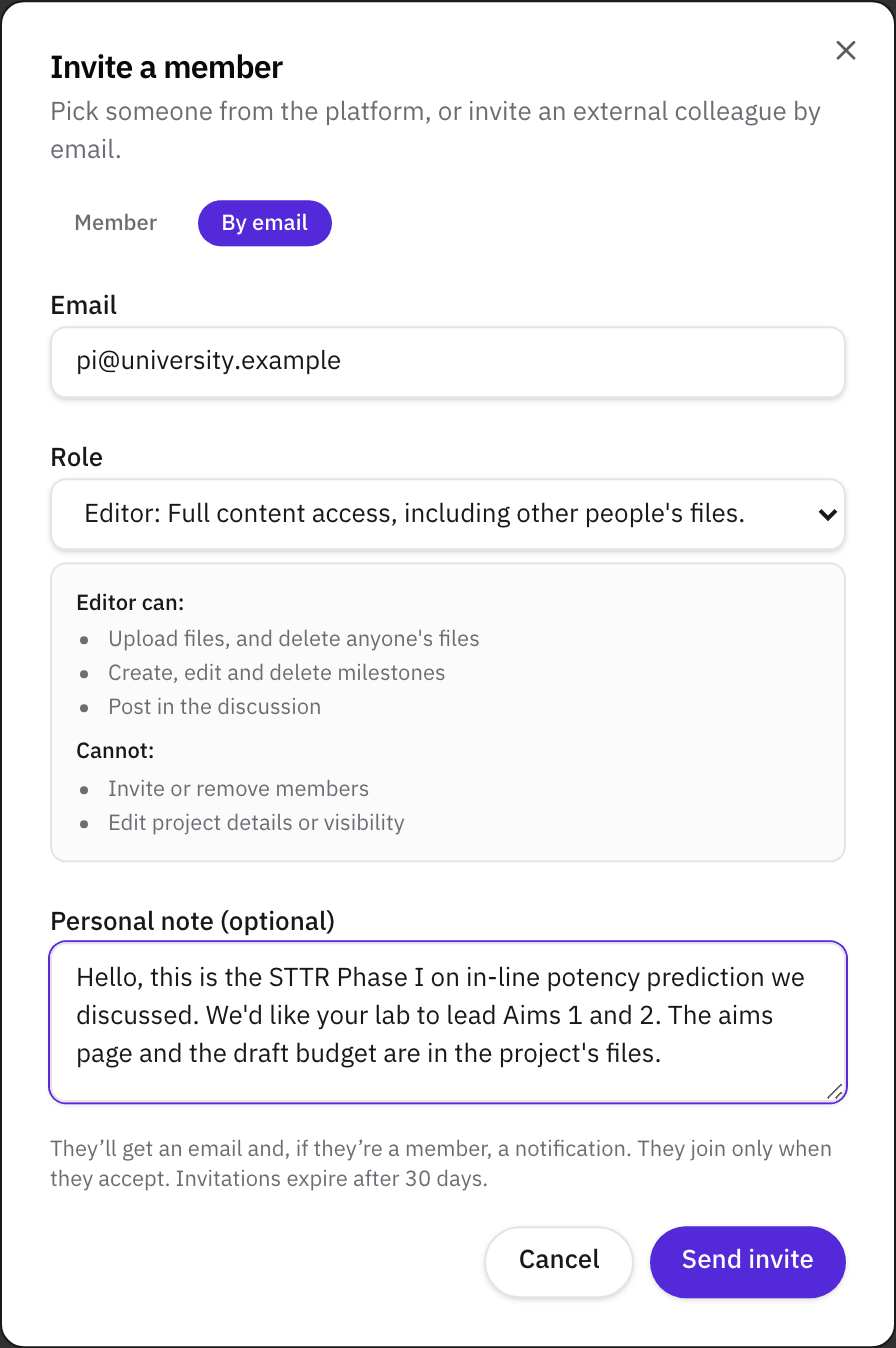
The PI joins only when they accept. They get an email with a link to the invitation, and a notification too if they already have a Helikon account. Until they answer, the Members tab shows them as Invited, with Resend and Revoke beside them. An invitation lasts 30 days, and Resend gives it another 30. How to invite external collaborators shows what the PI sees.

Step 7Keep the checklist and the draft agreements in the project's files
Open the Files tab. Pick the folder before you upload: Proposals for the partner checklist and the proposal drafts, Contracts for the drafts of the subaward and the STTR allocation of rights agreement. Leave the audience at Project members so the PI can open them too.
The folder chips at the top filter the list, so each set of documents is one click away.

What to read next
The rules for SBIR and STTR partners, and what to agree before you submit, are in our guide, SBIR and STTR university partners: the rules, how to find one, and what to agree before you submit. Our free SBIR and STTR partner readiness checklist puts everything a university needs in one document.
Related
- GuideSBIR and STTR university partners: the rules, how to find one, and what to agree before you submit
- GlossarySTTR (Small Business Technology Transfer)
- GlossarySBIR (Small Business Innovation Research)
- GlossaryResearch institution (SBIR and STTR)
- GlossarySubaward
- GlossaryAllocation of rights agreement
- GlossarySpecific aims page
- GlossaryPrincipal investigator (PI)
- WalkthroughFind a university partner for your SBIR/STTR proposal
- TemplateSBIR and STTR partner readiness checklist: a free template for founders and university partners
- PageCell and gene therapy manufacturing: who's working on it
- HelpSet up an industry-sponsored project and its contracts
- GlossaryIndirect costs (F&A)
- GlossaryPhase I and Phase II (SBIR and STTR)
- HelpCheck a researcher's grants and funding history