Help center · Tutorial · 6 steps
Set up an industry-sponsored project: milestones, reminders, files and NDA, IRB and contract dates
- About 10 minutes
- Free plan and up
- Checked in the app on
Follow one industry-sponsored project from an empty form to a working record: the signed agreement filed, the NDA, IRB and contract dates recorded, and the milestones set with reminders. Each step says exactly what to click and shows the screen you should see. Where a step differs on Pro, it says so. For an overview of everything a project workspace can do, rather than how to set one up, see the use case Manage an R&D collaboration project.
Before you start: you need an account, the signed agreement or its key dates, and a first pass at the milestones. The sponsor's lead does not need an account yet; inviting them is the next tutorial.
Step 1Create the project
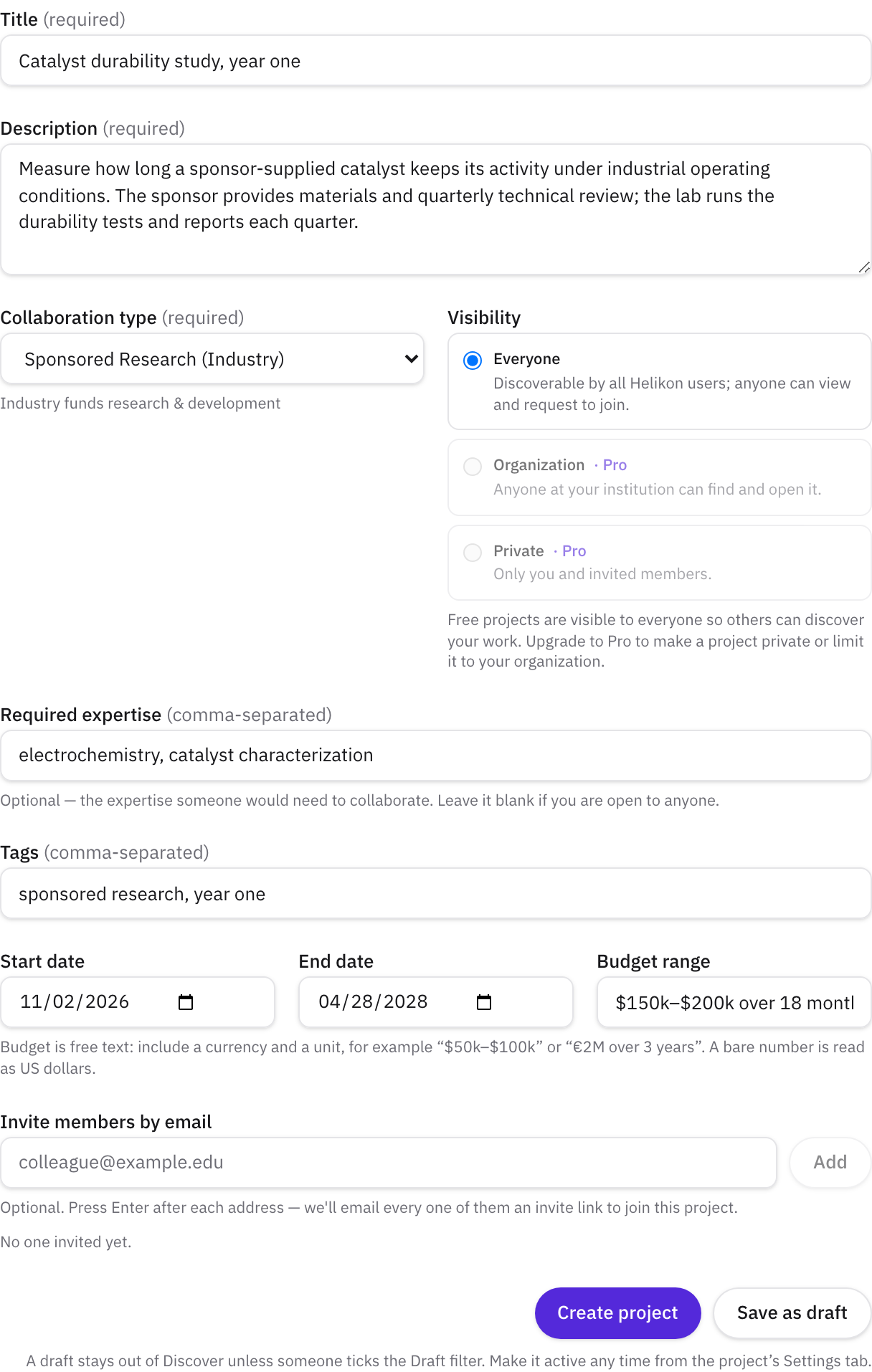
Open My Projects from the left sidebar and click New project. Fill in the form:
- Title: what you would want the sponsor to see, for example "Catalyst durability study, year one".
- Description: the problem, the scope and the sponsor's role in one short paragraph.
- Collaboration type: choose Sponsored Research (Industry) from the list. The list names specific agreement shapes, so pick the one that matches yours.
- Visibility: on Free, projects are visible to Everyone. A signed-in member who is not on the project sees the overview, the member list and only the files you mark for anyone who can see the project; milestones, discussion and the activity log stay with members. On Pro, choose Private so only invited members can open it, or Organization to limit it to your institution.
- Required expertise and Tags (both comma-separated), Start date and End date (changeable later). Budget range is optional free text, such as "$150k–$200k over 18 months".
You can also invite members by email on this form; leave it for now. Click Create project and the project is Active as soon as it is saved. If you would rather finish setting it up first, click Save as draft instead: a draft stays out of Discover unless someone ticks the Draft filter. Either way, the project's Settings tab has a Status control that switches it between Draft and Active later.
Step 2Flag the paperwork the project needs
Open the new project and go to its Settings tab. Under Compliance requirements, tick each one the agreement requires: Requires NDA, Requires IRB approval, Requires signed contract.
A requirement that is ticked blocks the project from moving to Active until the matching record is marked signed or approved. Ticking one on a project that is already active does not pause it; it stays Active, and the requirement shows as Required on the overview until you record it in step 4.

Step 3File the agreement
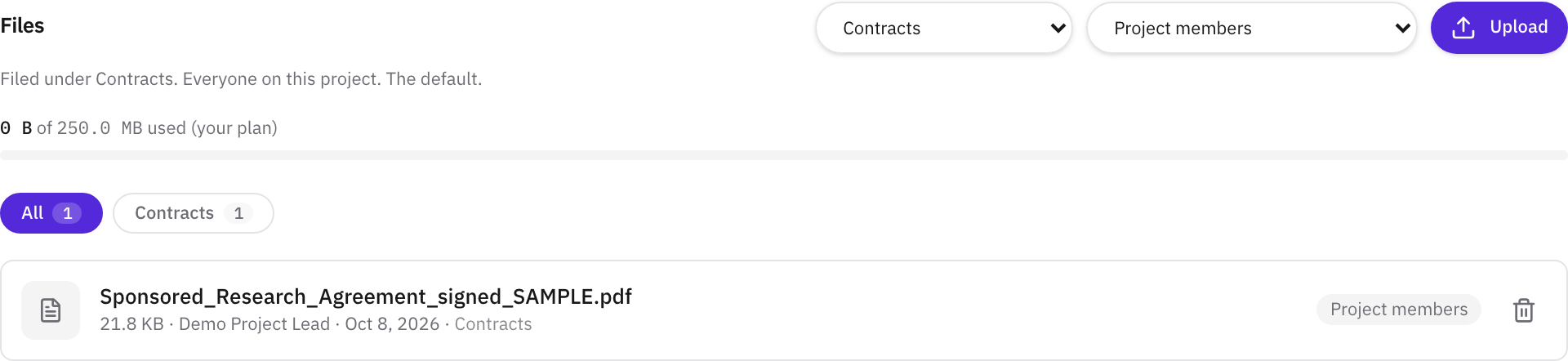
Do this before recording the dates, so the record in step 4 can point at the signed document.
Open the Files tab. Pick the folder first, from the dropdown beside Upload: Contracts for the signed agreement, Technical for data and protocols, Reports & deliverables for the sponsor reports. The folder cannot be changed after upload, so choose it before you pick the file. Then set who can open the file: Project members (the default) for the agreement, Only me for a draft that is not ready. The other two options are My organization and Anyone who can see the project. A file can never be more visible than the project it sits in.
Storage counts against the project owner's plan: 250 MB on Free, 5 GB on Pro.
Step 4Record the NDA, IRB and contract dates
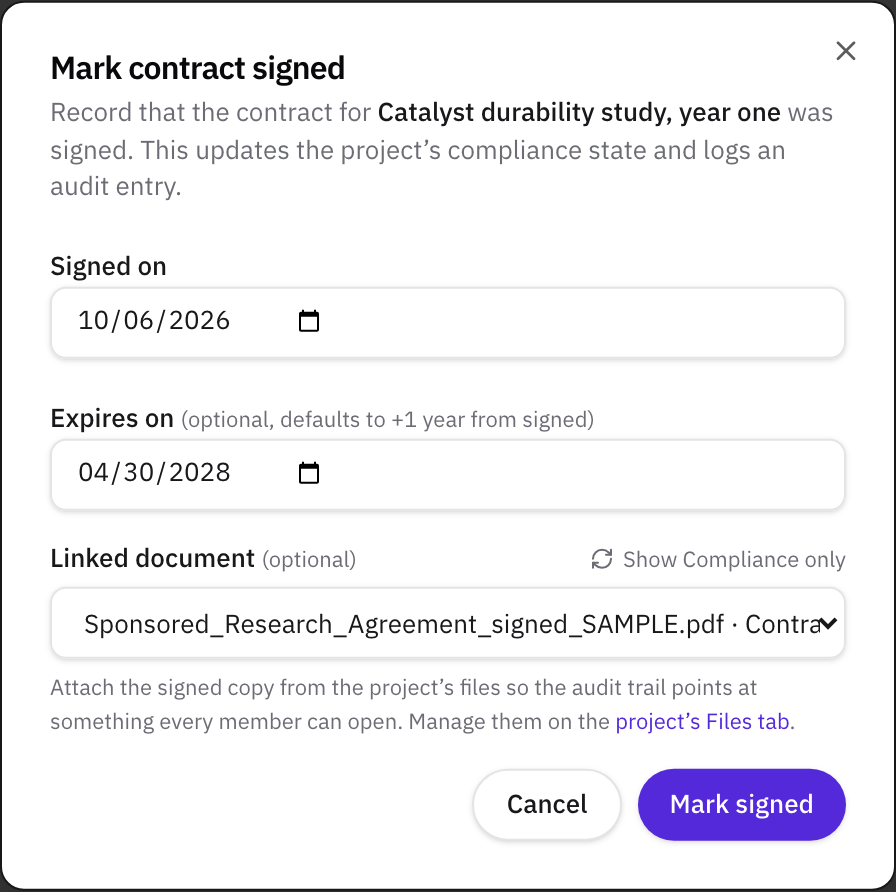
Back on the project's Overview tab, the Compliance card lists each requirement as Required. Click Mark signed (or Mark approved for the IRB) and enter:
- Signed on (or Approved on for the IRB), which defaults to today;
- Expires on, optional: left blank, it defaults to two years after signing for an NDA and one year for an IRB approval or a contract;
- Linked document, optional: the signed file from step 3. The list shows files in the Compliance folder by default. If you filed the agreement under Contracts, click Show any folder and choose it.
Click Mark signed. The card shows the requirement as Signed with its expiry date, and an audit entry is logged. This works on every plan.
Step 5Add the milestones
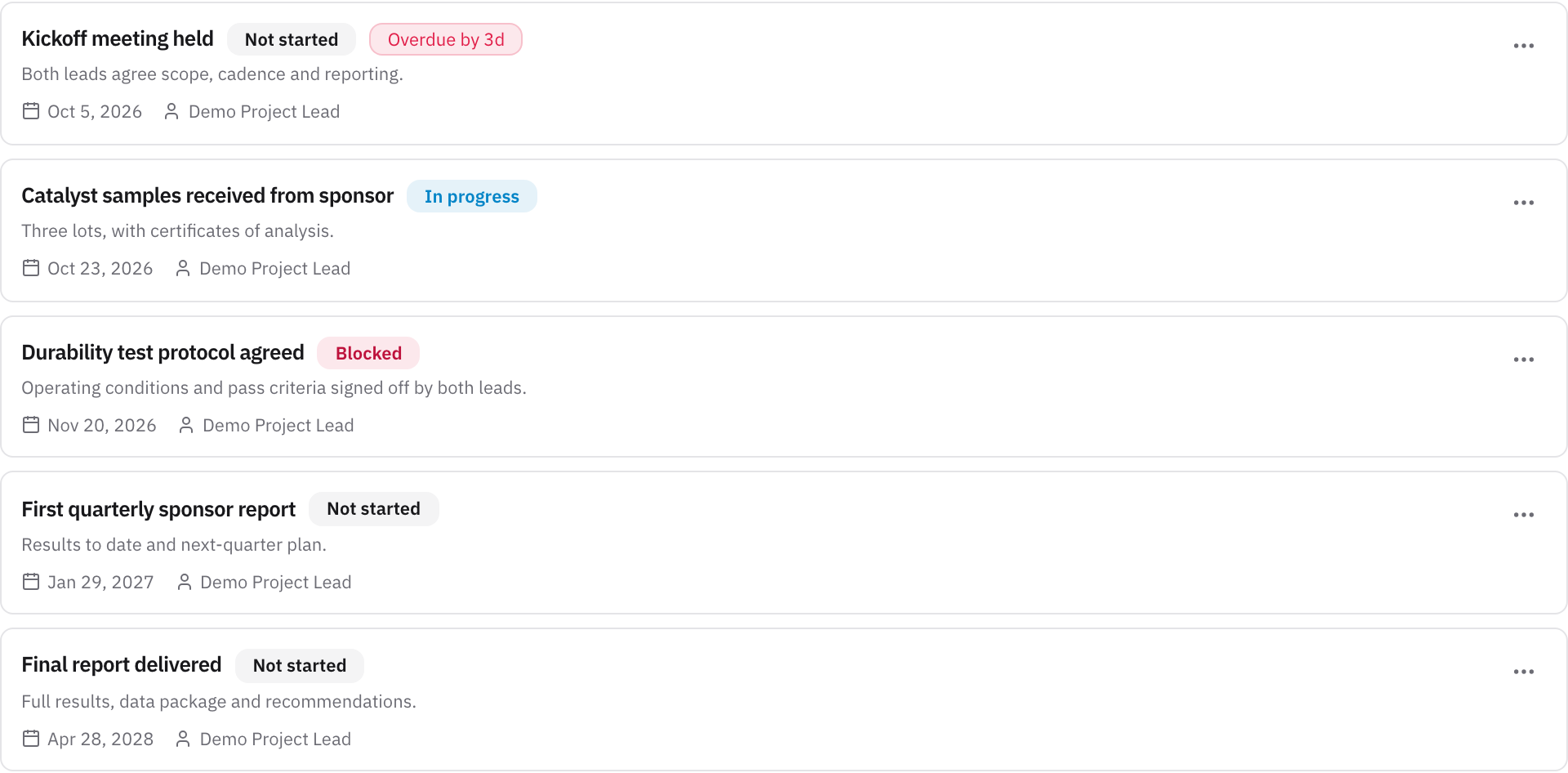
Open the Milestones tab. The form at the top takes a Title, a Description (useful for acceptance criteria), a Due date and an Assignee from the project's members. Click Add milestone for each one.
On Free, a project holds five milestones, which covers the main gates of most sponsored projects: for example "Kickoff meeting held", "Samples received from sponsor", "Test protocol agreed", "First quarterly sponsor report" and "Final report delivered". Pro has no limit, so you can add each quarterly report as its own milestone.
Each milestone has a status, set from its ⋯ menu: Not started, In progress, At risk, Delayed, Blocked, On hold, Completed or Cancelled. A milestone past its due date shows an Overdue flag unless it is completed or cancelled. Edit details in the same menu changes the title, description, due date and assignee, so until the sponsor's lead has joined, assign their milestones to yourself and reassign them after the invitation (next tutorial).
Reminders need no setup. The assignee and the project owner each get an email three days before a milestone is due, another the day before, and one the day after it becomes overdue. Completed and cancelled milestones stop sending reminders.
Step 6Check the dashboard and request the kickoff meeting
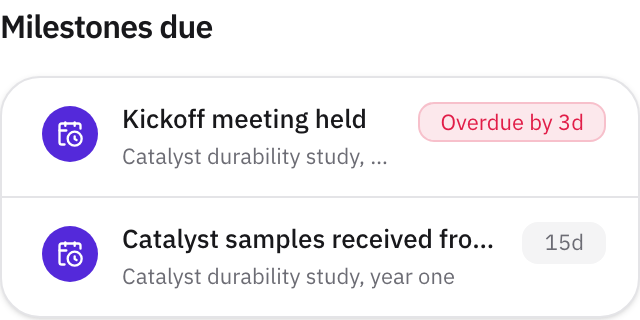
Open your Dashboard. The Milestones due panel lists the project's upcoming and overdue milestones, and it appears on the dashboard of everyone on the project, not only the assignee.
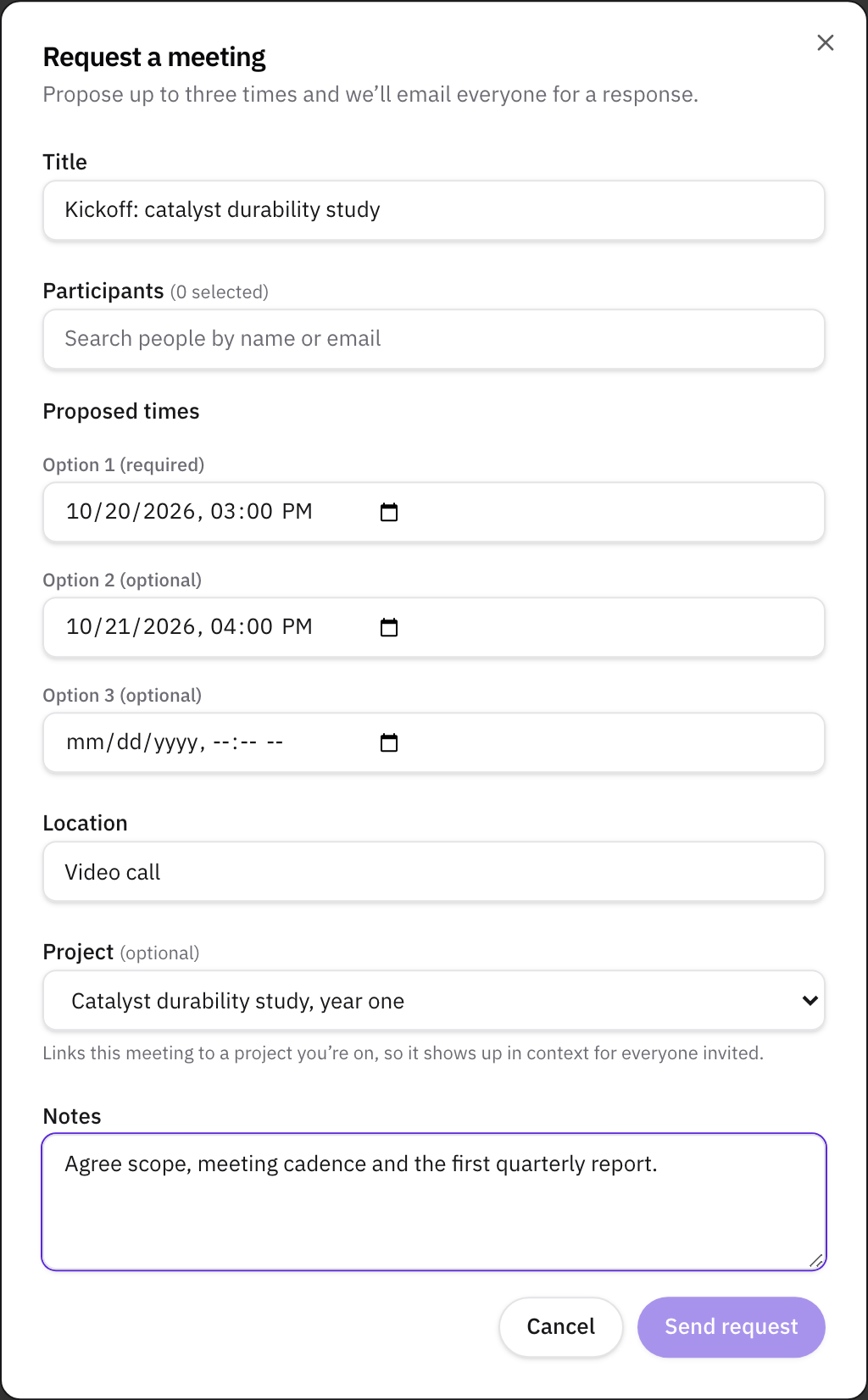
Then request the kickoff meeting. Open Connect from the sidebar, go to Meetings and click New request. Give it a title, add the participants, propose up to three times, add a location and notes, and choose the project under Project so the meeting shows up in context for everyone invited. Click Send request. Each participant is emailed to accept a time or suggest another; once a time is confirmed, everyone gets a calendar invite by email that adds to Google, Outlook or Apple Calendar. A change made in a calendar app does not flow back to the platform, so if the time moves, change it on the meeting. Free accounts can request five meetings a month; Pro, 50.
What to do next
- Invite the sponsor's lead and set who can see what. The next tutorial covers inviting an outside collaborator by email, the four roles (admin, editor, collaborator, viewer) and project visibility. Invitations go to anyone, on any plan.
- Agree how the project will be run. The plain guide to project management for university-industry research collaborations covers decision rights, the meeting cadence, milestones versus academic freedom and escalation, and the free Governance Charter records them on a page both leads sign.
Related
- GuideHow to manage a university-industry research collaboration: the plain guide
- GlossaryMilestone
- GlossaryDecision rights
- WalkthroughManage an R&D collaboration project with milestones, files, and a shared record
- TemplateGovernance Charter template for university-industry research collaborations
- PagePricing
- GlossaryAlliance manager
- GlossaryEscalation protocol
- GlossaryRACI