Help center · Tutorial · 7 steps
How to track deliverables and reporting obligations: sponsor reports, publication reviews, disclosures, and reminders
- About 10 minutes
- Free plan and up
- Checked in the app on
To track what a research agreement asks for on Helikon, list each duty on the project's Obligations card with its due date and the person responsible. Helikon then emails that person and the project owner as the date gets close, and once if it's missed. The card holds deliverables, sponsor reports, publication reviews, invention disclosures, and anything else with a deadline. It works on every plan.
Before you start: you need a project. If you created it from the Sponsored Research (Industry) template, five obligations are already on the card (see Set up an industry-sponsored project). Anyone on the project except a viewer can add and update obligations, and everyone on it can see them. Helikon Labs isn't a law firm, and nothing here is legal advice: the dates and duties come from your agreement.
Step 1Open the Obligations card
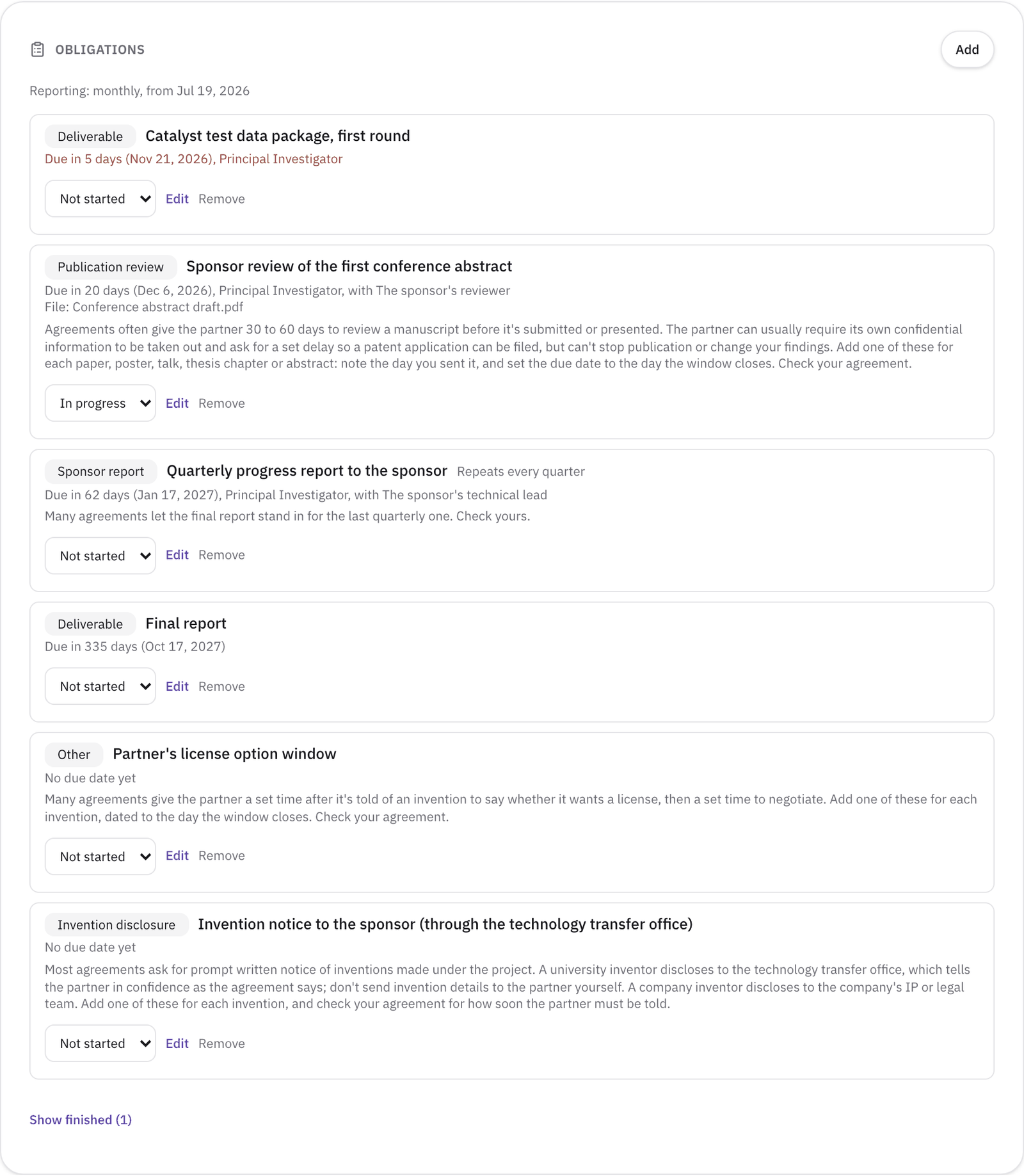
Open the project's Overview tab. The Obligations card sits under the Compliance card. Each open obligation shows its kind, its title, and when it's due, such as Due in 5 days, Due today, or 3 days overdue, then the person responsible and the other side's contact. An obligation with no date yet says No due date yet. Anything overdue is red, and anything due within 7 days is amber.
A project created from a template also shows its reporting rhythm at the top, such as Reporting: monthly. Finished obligations move under Show finished.
Step 2Add a deliverable, a report, or a publication review
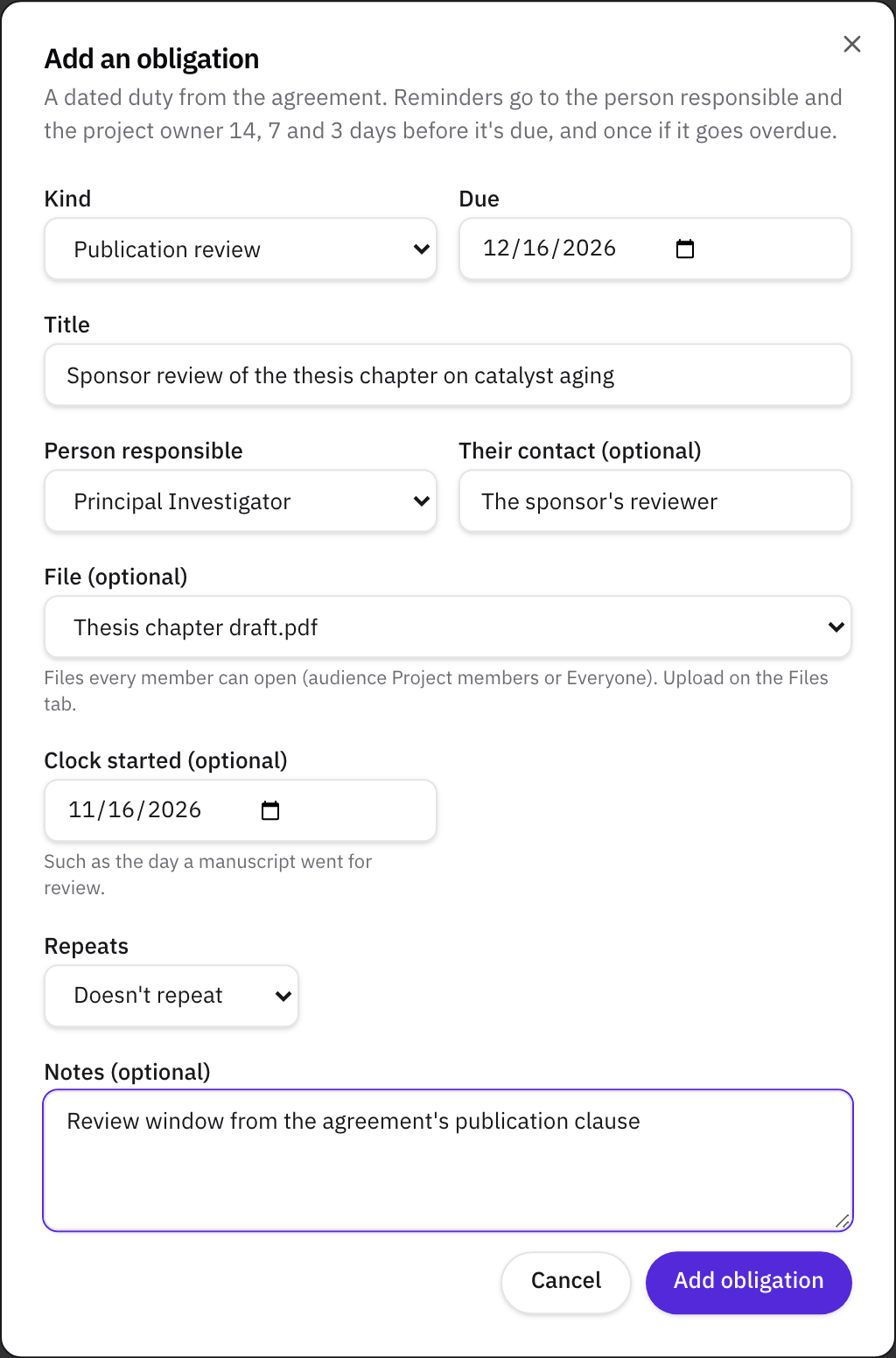
Click Add on the card. The Add an obligation dialog asks for:
- Kind: Deliverable, Sponsor report, Publication review, Invention disclosure, or Other.
- Due: the deadline. Leave it blank for a duty that's dated when it comes up.
- Title, such as "Q1 progress report to the sponsor".
- Person responsible: the member on your side who owns it.
- Their contact (optional): the person on the other side, such as the sponsor's reviewer.
- File (optional): see step 5.
- Clock started (optional): the day a review clock began, such as the day a manuscript went for review.
- Repeats: see step 3.
- Notes (optional): anything the next person needs, such as the clause it comes from.
Click Add obligation.
For a publication review, add one for each paper, poster, talk, thesis chapter, or abstract. Set Clock started to the day you sent it and Due to the day the review window closes, so both sides can see the clock. Our article Can a sponsor block publication of university research? explains what review clauses usually allow.
For an invention disclosure, a university inventor discloses to the technology transfer office, which tells the sponsor as the agreement says. The template's note on this obligation says the same.
Step 3Make a report repeat
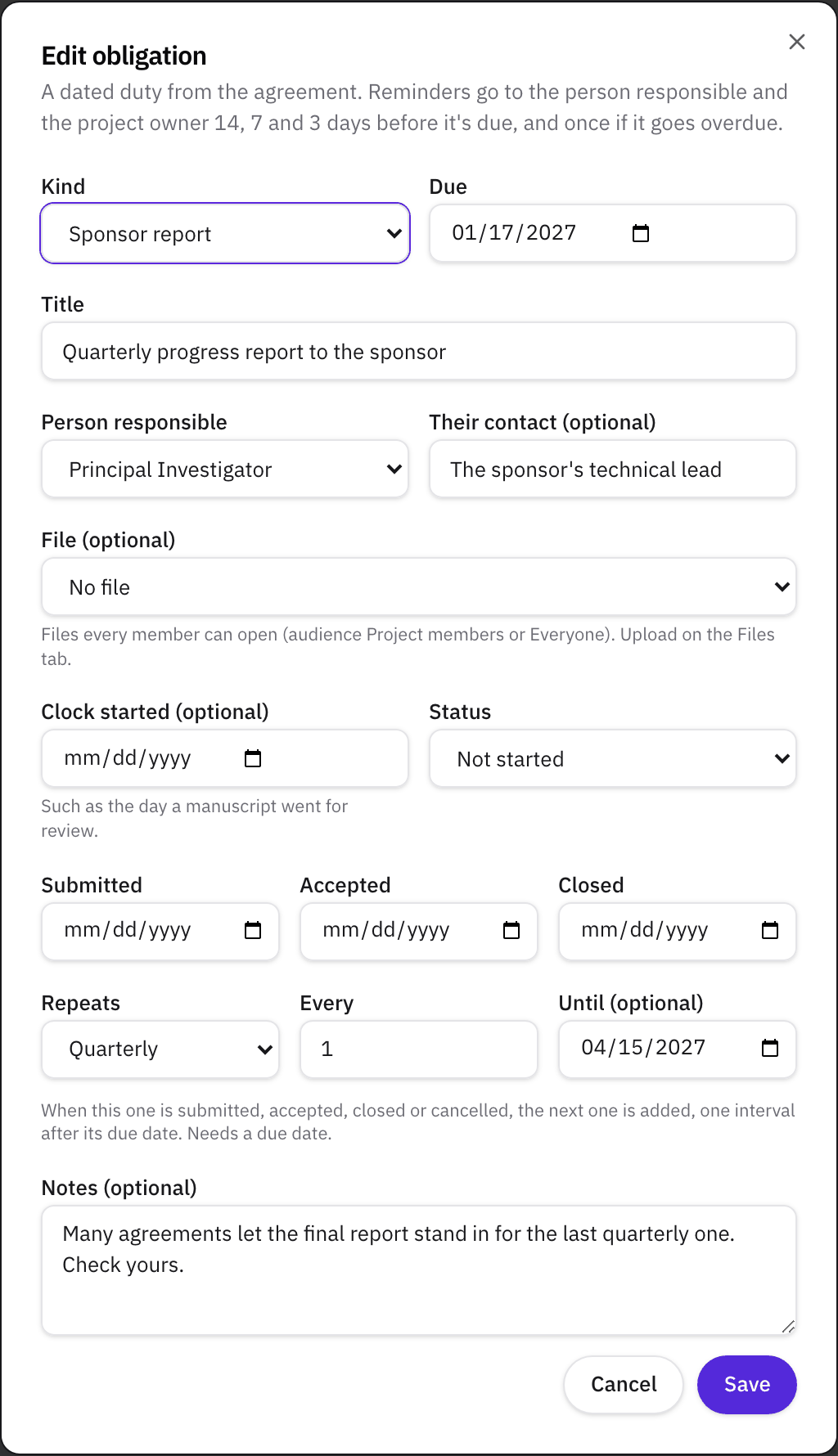
Set Repeats to Weekly, Monthly, Quarterly, or Yearly, then Every (1 to 99) and, if you like, Until. A repeating obligation needs a due date. When you mark it Submitted, Accepted, or Closed, or cancel it, the next one is added, due one interval after this one's due date. The card confirms with "Updated. The next one is on the list."
A federal award sets its own reporting rhythm. Under the Uniform Guidance, performance report "intervals must be no less frequent than annually nor more frequent than quarterly," unless the agency applies specific conditions (2 CFR 200.329(c)(1)). The final performance report is due no later than 120 calendar days after the period of performance ends. An industry agreement names its own dates, so copy them from the agreement.
Step 4Move each one through its statuses
Change an obligation's status from the list on its row: Not started, In progress, Submitted, Accepted, or Closed, or cancel it. Helikon fills in the matching date (submitted, accepted, or closed), and you can correct it with Edit. Remove takes an obligation off the card after you confirm.
Adding an obligation, changing its status or its due date, and removing it are each logged in the Activity tab as a compliance record. Editing a title or a note isn't logged.
Step 5Link the file that goes with it
In Add or Edit, File (optional) lists the project's files that every member can open, which means files whose audience is Project members or Everyone. Upload the file on the Files tab first, such as the submitted report under Reports & deliverables, then pick it here. The card shows the file's name on the obligation's row.
A file only you can open, or only your organization, can't be linked, because the people tracking the duty need to read it.
Step 6Let the reminders do the chasing
Reminders need no setup. While an obligation is open (Not started or In progress) and has a due date, Helikon emails the person responsible and the project owner:
- once when it's 8 to 14 days away,
- once when it's 4 to 7 days away,
- once in the last 3 days, the due date included,
- and once in the first week after the date, if it's still open.
An obligation added late starts with the window it's already in. With no person responsible, only the owner is emailed. The email's subject is the obligation's title and when it's due, such as "Quarterly progress report to the sponsor: due in 6 days." The email names the kind, the project, and the date. It also says the reminders stop once you mark the obligation submitted, accepted, or closed.
Reminders also stop when the project is archived or completed, and for anyone no longer on the project. An obligation with no due date never sends one. Anyone can turn these emails off with Project deadline reminders in Settings, under Notifications.
Step 7Record the IRB's decision
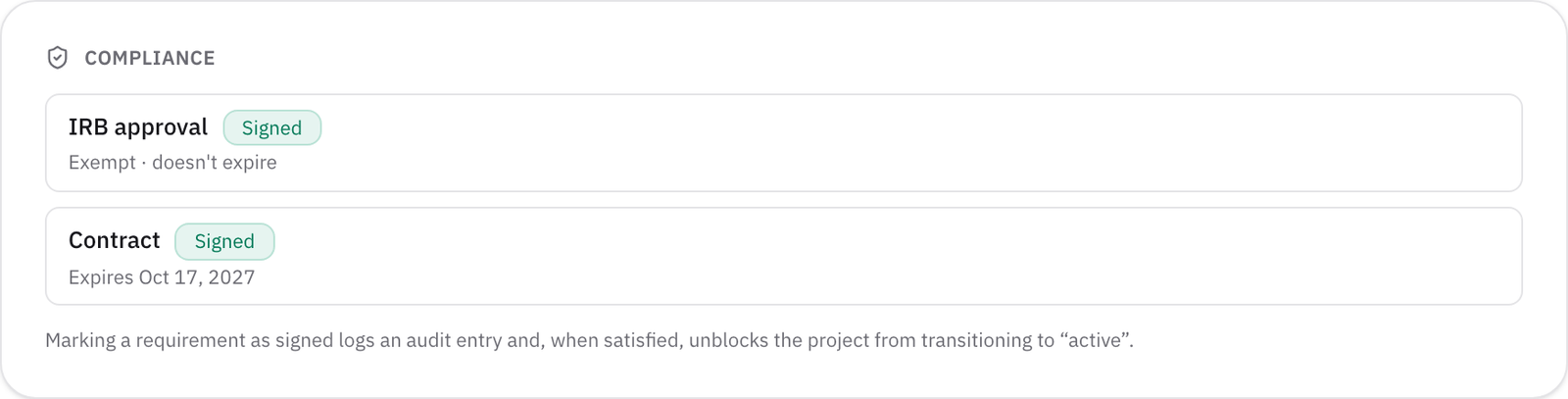
If the project involves people, such as a survey or a user study, tick Requires IRB approval under Compliance requirements on the project's Settings tab. On the Overview tab, the Compliance card then lists IRB approval as Required, and the project owner clicks Mark approved.
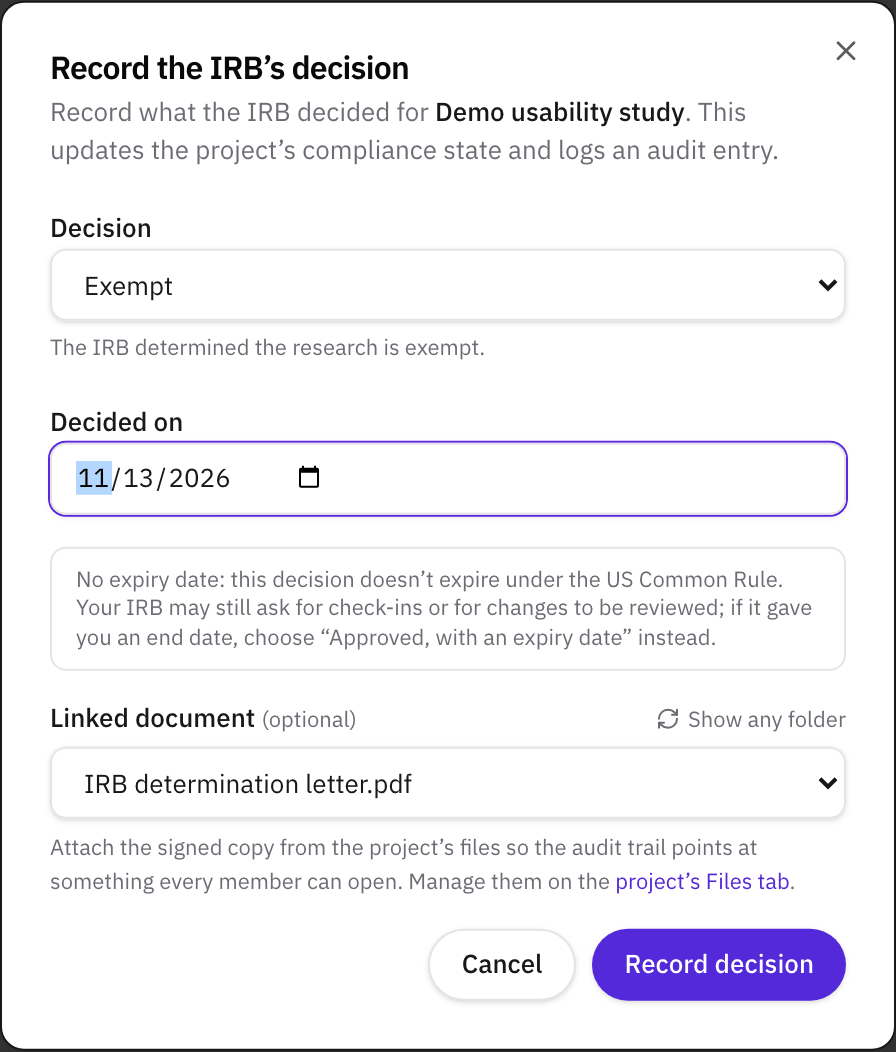
The Record the IRB's decision dialog starts with the Decision:
- Approved, with an expiry date: continuing review. Enter Approved on and, if the letter gives one, Expires on. Left blank, the expiry is a year after approval.
- Approved, no continuing review: the IRB approved it and set no expiry.
- Exempt: the IRB determined the research is exempt.
- Not human subjects research: the IRB determined it isn't human subjects research.
The last three ask for the day it was decided and take no expiry date, because they don't expire. That follows the 2018 Common Rule, under which continuing review isn't required, unless the IRB decides otherwise, for cases such as "research eligible for expedited review" (45 CFR 46.109(f)(1)). Pick the linked document, such as the IRB's letter, and click Record decision.
The card then shows the decision. One that doesn't expire reads, for example, Exempt · doesn't expire. An approval with an expiry date sends the project owner an email 14, 7, and 3 days before it expires.
What to do next
- Plan the schedule around these dates. How to plan a research project schedule covers milestones, checklists, baselines, and no-cost extensions.
- Track the budget the agreement commits. How to track a research project budget covers the Budget tab.
- Know what to expect from a review clause. Our article Can a sponsor block publication of university research? walks through what universities accept. Helikon Labs isn't a law firm, and nothing here is legal advice.
Sources
- Electronic Code of Federal Regulations, 2 CFR 200.329, Monitoring and reporting program performance, paragraph (c)(1). www.ecfr.gov/current/title-2/subtitle-A/chapter-II/part-200/subpart-D/section-200.329
- Electronic Code of Federal Regulations, 45 CFR 46.109, IRB review of research, paragraph (f)(1) (up to date as of 22 October 2026). www.ecfr.gov/current/title-45/subtitle-A/subchapter-A/part-46/subpart-A/section-46.109
Related
- GuideHow to manage a university-industry research collaboration: the plain guide
- GlossaryPublication review
- GlossarySponsored research agreement (SRA)
- GlossaryIRB (institutional review board)
- GlossaryMilestone
- WalkthroughManage an R&D collaboration project: schedule, obligations, budget, and status reports
- HelpSet up an industry-sponsored project and its contracts
- HelpHow to plan a research project schedule
- HelpTrack research contracts and grant proposals
- HelpHow to track a research project budget
- ArticleCan a sponsor block publication of university research? What universities accept, and what the model clauses say
- GlossaryAlliance manager
- GlossaryDecision rights
- GlossaryEscalation protocol