Help center · Tutorial · 6 steps
How to invite external collaborators from another university or company
- About 5 minutes
- Free plan and up
- Checked in the app on
To invite an external collaborator to a research project on Helikon, you send them an invitation by email from the project and choose their role, and they see the project as soon as they accept. You need a free account, a project you own or manage, and the collaborator's email address.
Before you start: if you haven't set up the project yet, start with Set up an industry-sponsored project. To send invitations, your own profile needs its role, organization, a few expertise keywords, and a short bio. The platform tells you what's missing if any of them is blank.
Step 1Invite them from the project
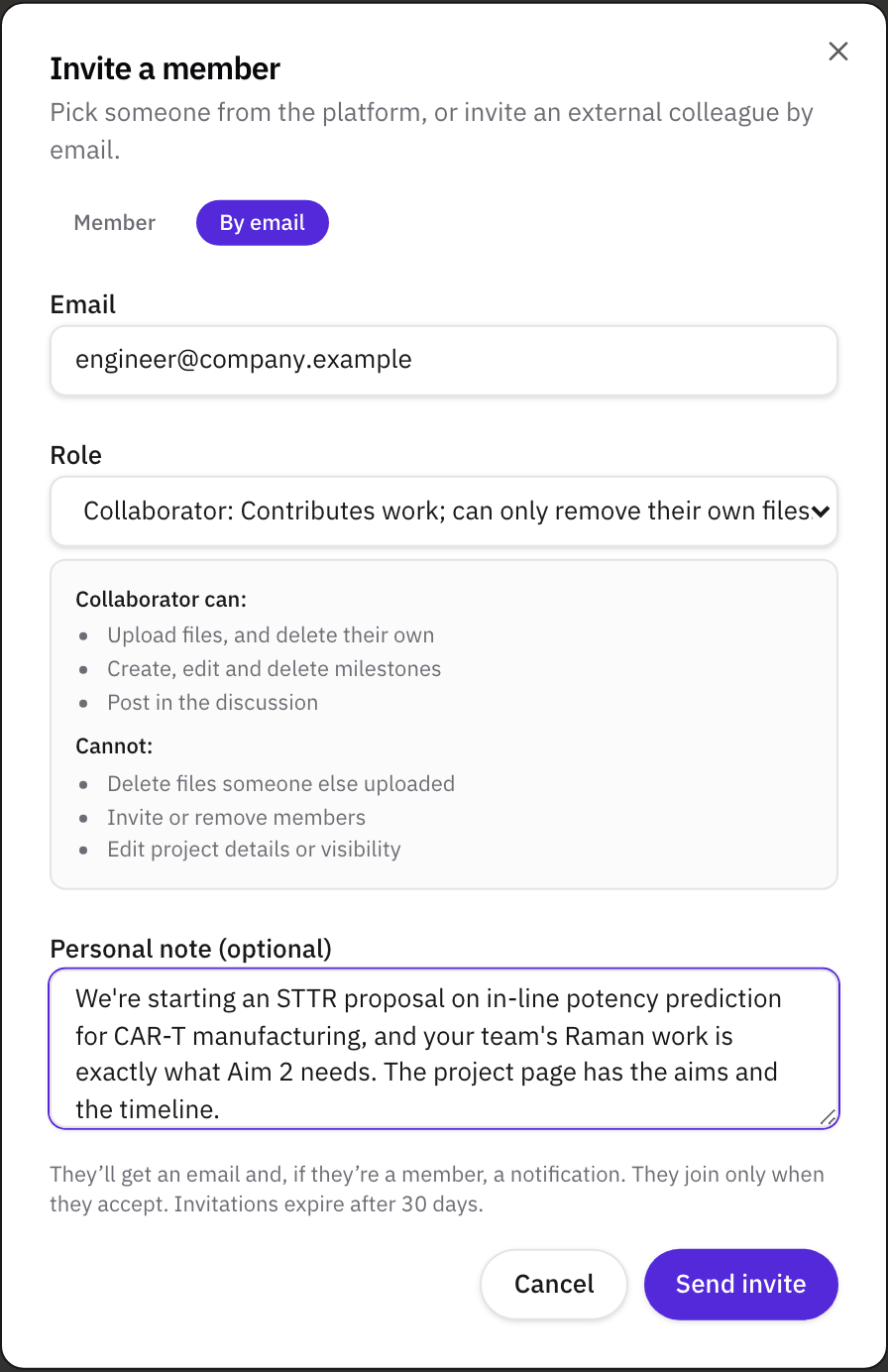
Open the project and go to its Members tab. Click Invite member and choose how to find the person:
- By email for someone at another university or company who may not be on Helikon yet. Enter their work address.
- Member for someone already on Helikon. Start typing their name and pick them from the list.
Choose a role (step 5 explains each one). For an invitation by email, add a personal note if you like. It goes in the invitation email, so say who you are and what the project needs from them. Click Send invite.
Nobody joins a project without saying yes. Both kinds of invitation wait for the person to accept, and they expire after 30 days.
Step 2What they receive
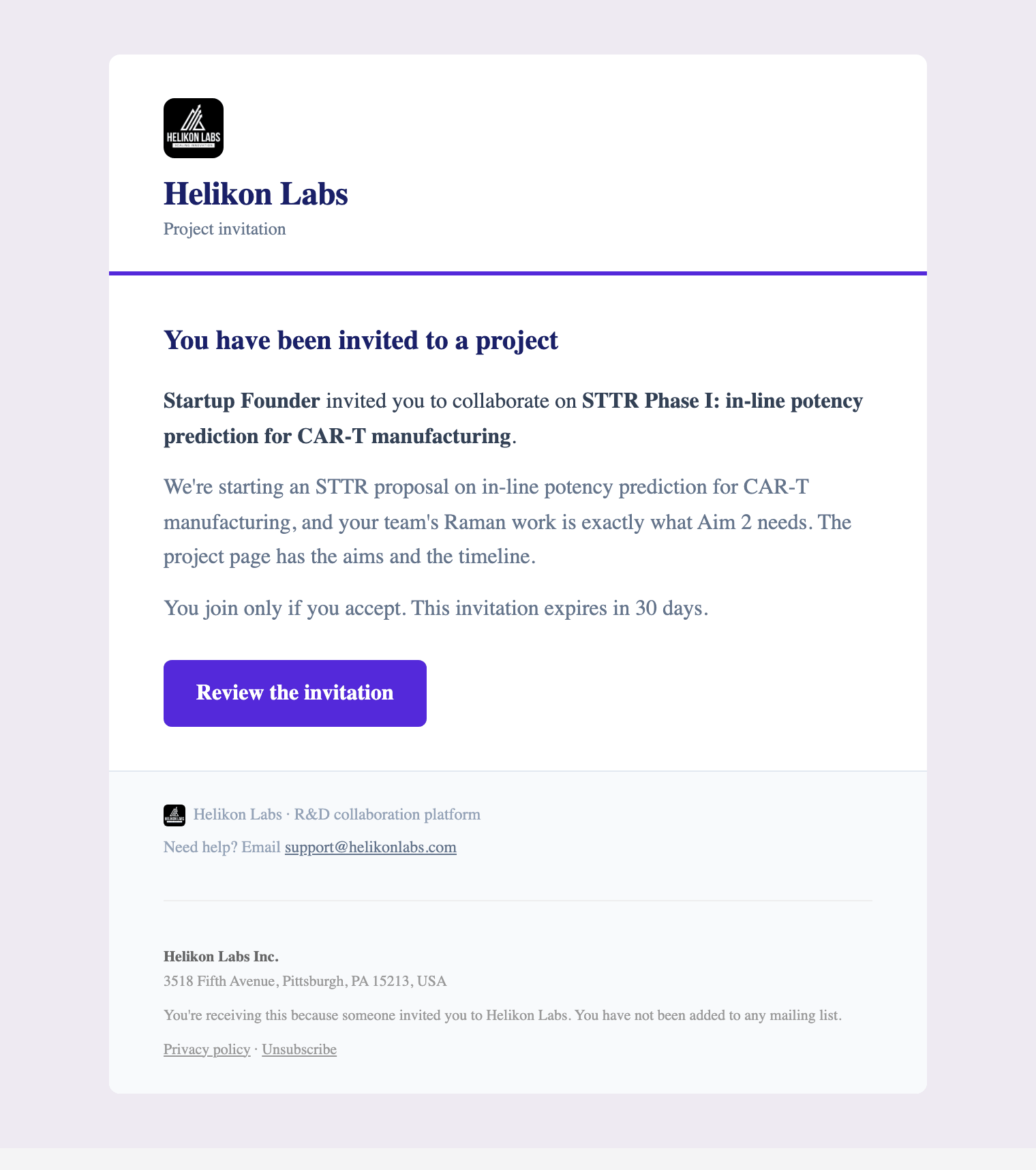
Everyone you invite gets a message from Helikon Labs with your name, the project's title, your note if you wrote one, and a Review the invitation button. The invitation is good for 30 days.
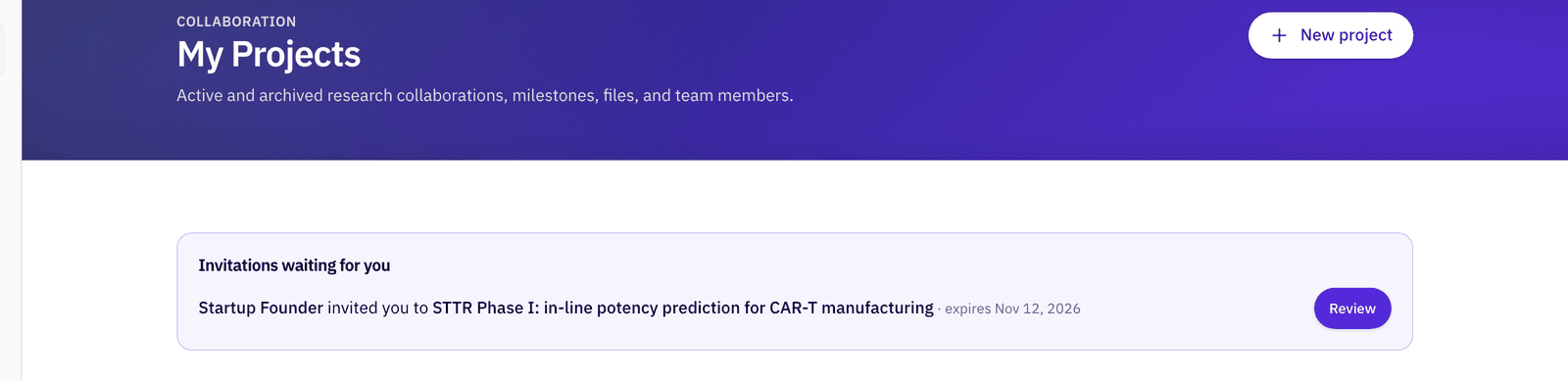
Someone who already has a Helikon account also gets a notification, and the invitation waits for them at the top of My Projects, under Invitations waiting for you.
Step 3Follow the invitation on the Members tab
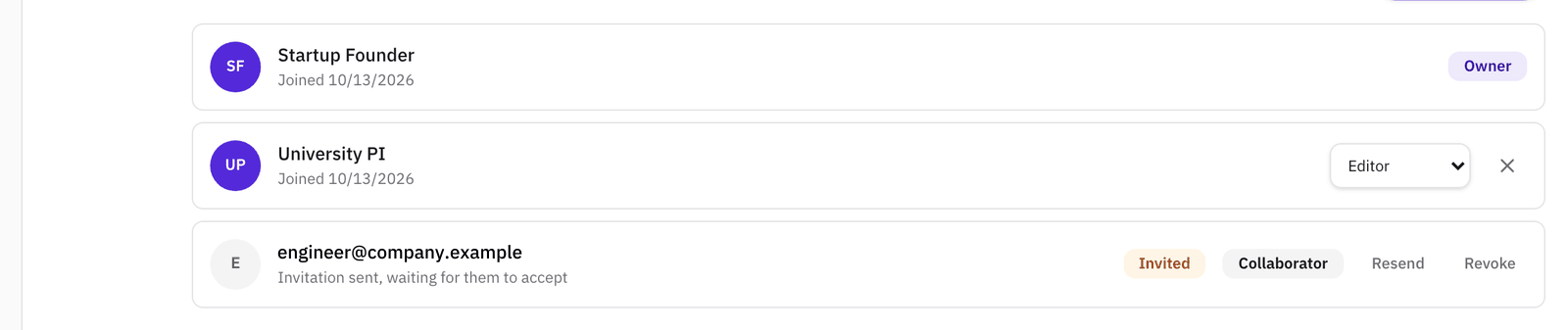
Until they accept, the Members tab lists them as Invited, "Invitation sent, waiting for them to accept", with the role you chose. Two buttons sit beside it:
- Resend sends the invitation again and gives them another 30 days.
- Revoke cancels it after you confirm, and the link stops working.
People who have already joined are listed with the date they joined and a menu to change their role.
Step 4What they see, and how they accept
Review the invitation opens the invitation page. It shows who invited them, the project, the role they'd have, your note, and when the invitation expires.
If they aren't signed in, the page asks them to sign in with the invited address, or to create a free account with it. Someone new answers a few profile questions after signing up, or chooses Finish later, and then comes back to the invitation.

Signed in with the invited address, they see Accept and join and Decline.
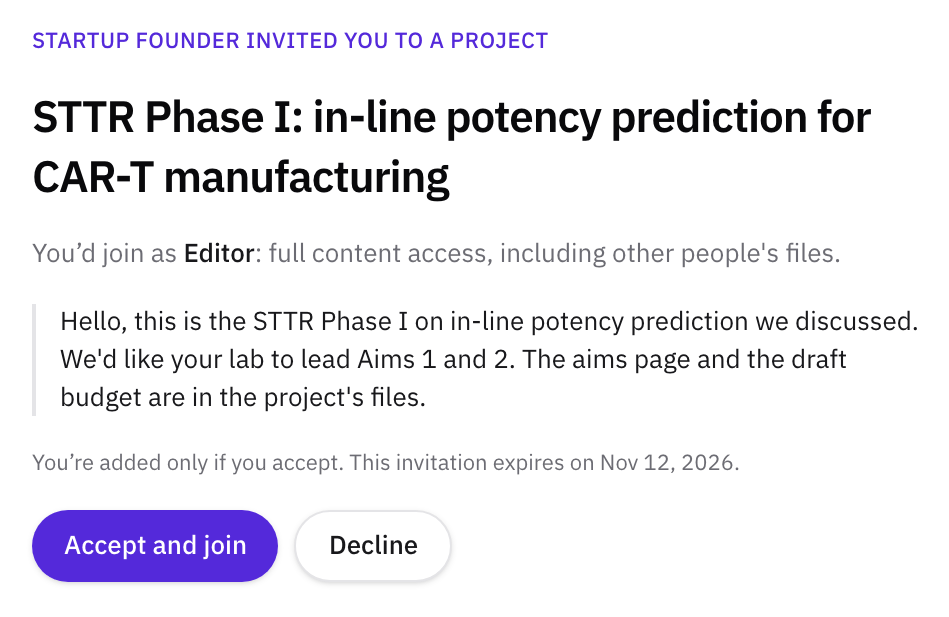
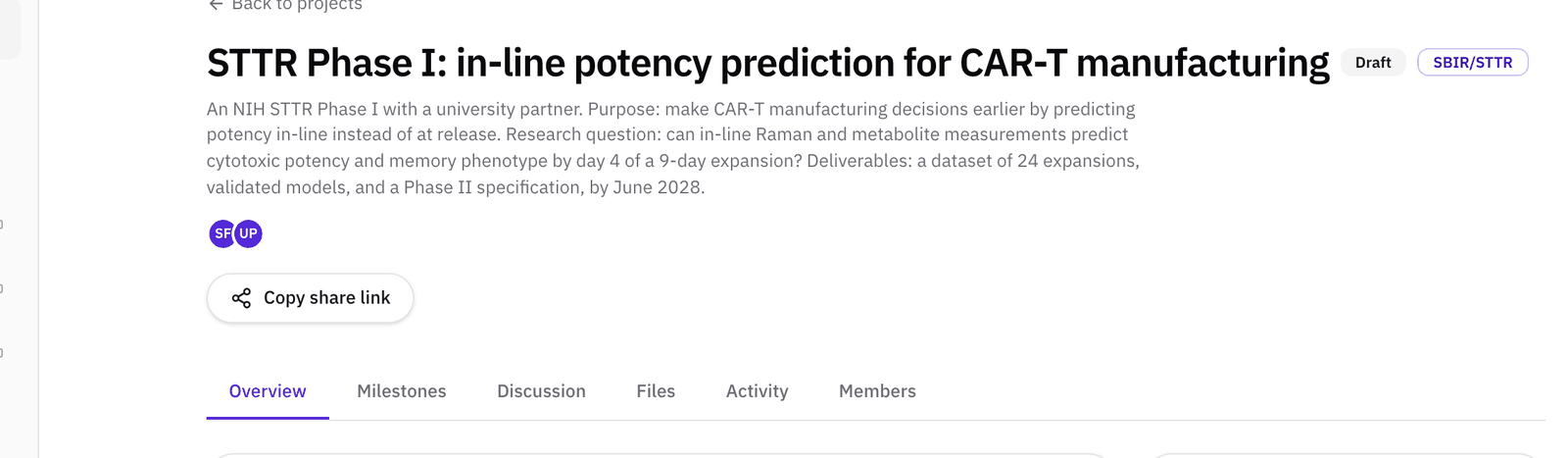
Once they accept, the project shows up under their My Projects, and they can open it like any project of their own.

What they can do inside it depends on their role. An Editor or Collaborator sees the Overview, Milestones, Discussion, Files, Activity, and Members tabs. Only the owner and admins see Settings, where the project's status, visibility, and paperwork requirements are set.
Step 5Choose the right role
| Role | Can | Can't |
|---|---|---|
| Viewer | Read everything and comment | Change anything |
| Collaborator | Upload files and delete their own, manage milestones, post in the discussion | Delete other people's files, invite people, change settings |
| Editor | Upload files and delete anyone's, manage milestones, post in the discussion | Invite or remove people, edit the project's details or visibility |
| Admin | Everything an Editor can, plus invite, remove, and change the roles of people, and edit the project's details, timeline, and visibility | Archive or delete the project, or review requests to join it |
For a partner's researchers, Collaborator is the usual choice. Editor suits a co-investigator you trust to tidy the files. Keep Admin for the person who runs the project with you. An Admin has to be on the Pro plan or higher.
To change someone's role later, pick a new one from the menu on their row. The change applies at once.

Step 6Remove someone when the work ends
When a partner's part of the project is done, or someone leaves their organization, remove them so their access ends. Click the × beside their role on the Members tab, and confirm. Their access ends straight away.
To cancel an invitation that hasn't been accepted, click Revoke and confirm. How many people a project can hold depends on the owner's plan, so removing people who've finished also makes room for new ones.
What to read next
For the rest of running the collaboration, from decision rights to the meeting cadence, read How to manage a university-industry research collaboration.
Related
- GuideHow to manage a university-industry research collaboration: the plain guide
- GlossaryDecision rights
- GlossaryRACI
- WalkthroughManage an R&D collaboration project with milestones, files, and a shared record
- HelpSet up an industry-sponsored project and its contracts
- HelpFind an SBIR or STTR partner from your specific aims page
- GlossaryAlliance manager
- GlossaryEscalation protocol
- GlossaryKickoff meeting