Help center · Tutorial · 6 steps
How to keep a risk register for a research project
- About 10 minutes
- Pro plan and up (the project owner's plan decides)
- Checked in the app on
A risk register lists what could go wrong on a project, how likely and how serious each risk is, who's watching it, and what you'll do about it. On Helikon, it's the project's Risks tab. Each risk gets a likelihood and an impact from 1 to 5. Its exposure is the two multiplied, from 1 to 25. Each risk also chooses who can see it, and its owner gets a reminder on its review date. The risk register is on Pro and up, and the project owner's plan decides, so everyone on a Pro owner's project can use it.
The PMBOK Guide is the Project Management Institute's standard. It describes a risk register as "a repository in which outputs of risk management processes are recorded." The eighth edition lists what an entry can hold: a short title, a category, a status, an owner, the causes, the effects, and the timing (PMBOK Guide, eighth edition, 2025, page 136). It also notes that numeric scores for probability and impact "can be multiplied to give a probability-impact score for each risk" (page 186). That product is the exposure on Helikon.
Before you start: you need a project whose owner is on Pro or higher. Collaborators, editors, admins, and the owner can add and edit risks. Viewers can read the risks they're allowed to see. Planned effort, in step 6, is filled in by the owner and admins.
Translation Box: "risk"
On the industry side: a risk register is routine program control. A sponsor's program manager expects to see the top risks, their owners, and the mitigations at every review.
On the academic side: risk usually appears once, in the proposal, as the experiments that might not work and the alternatives. A register keeps that list current after the award, and adds the risks a sponsor cares about, such as schedule, cost, and the relationship itself.
Step 1Open the Risks tab and add a risk
Open the project and go to the Risks tab. The Risk register card explains the scoring at the top: exposure is likelihood times impact, 1 to 25, and each risk chooses who can see it. Click Add a risk.
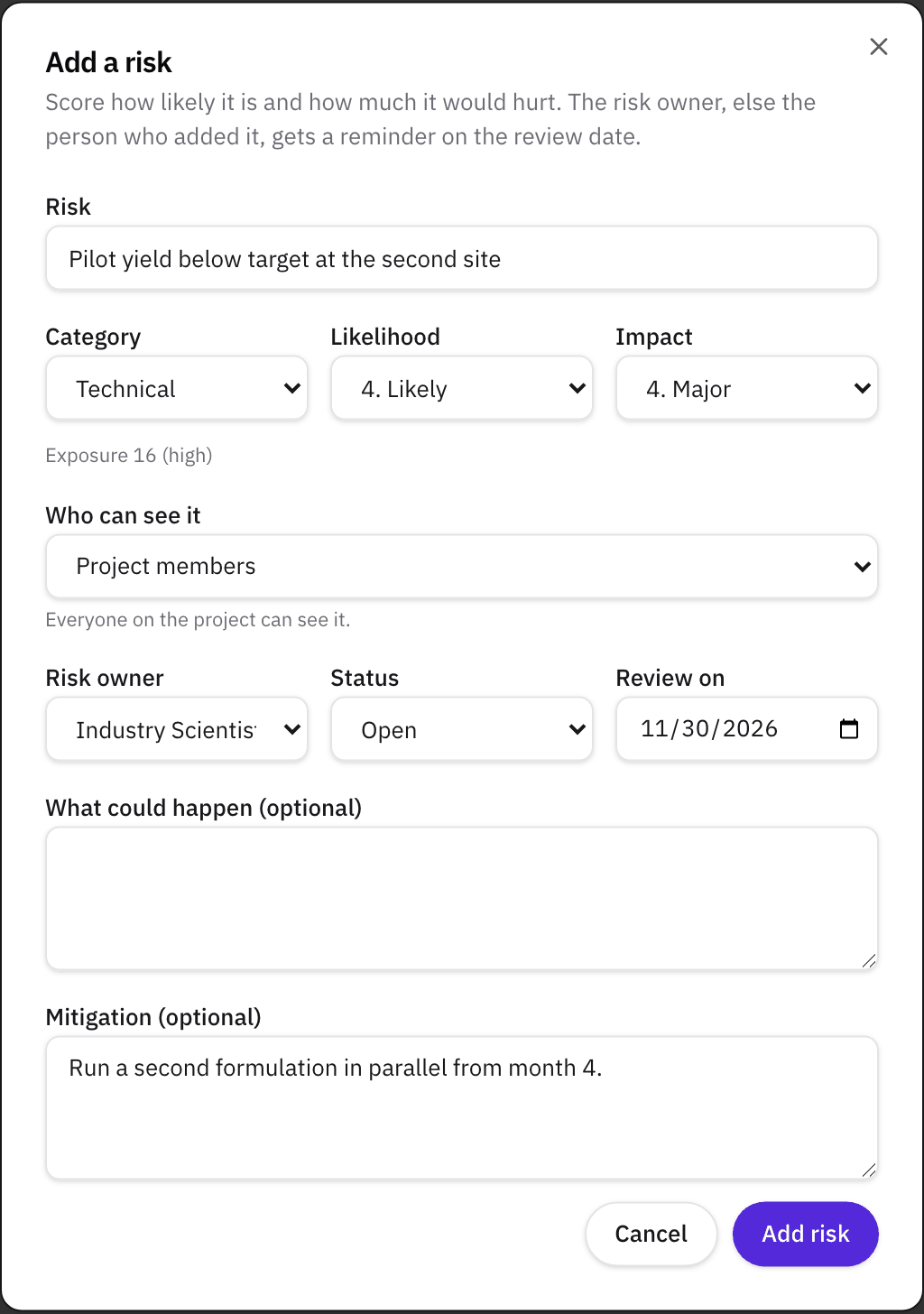
Give the risk a title that says what could happen, such as "Pilot yield below the target the sponsor expects", and pick a Category: Technical, Schedule, Cost, Relationship, or Compliance.
If the owner's plan is Free, the card says the risk register is part of Pro, and that it opens for everyone on the project when the owner upgrades.
Step 2Score the likelihood and the impact
Pick a Likelihood and an Impact, each from 1 to 5:
| Score | Likelihood | Impact |
|---|---|---|
| 1 | Rare | Minor |
| 2 | Unlikely | Moderate |
| 3 | Possible | Significant |
| 4 | Likely | Major |
| 5 | Almost certain | Severe |
The form shows the exposure as you choose, with a band: low from 1 to 7, medium from 8 to 14, and high from 15 to 25. A likely risk with a major impact scores 4 times 4, which is 16, high.
Step 3Choose who can see the risk
Under Who can see it, pick one of three audiences:
- Project members: everyone on the project.
- My organization: you, and the project members who belong to your verified organization.
- Only me: nobody else, not even the project owner or admins.
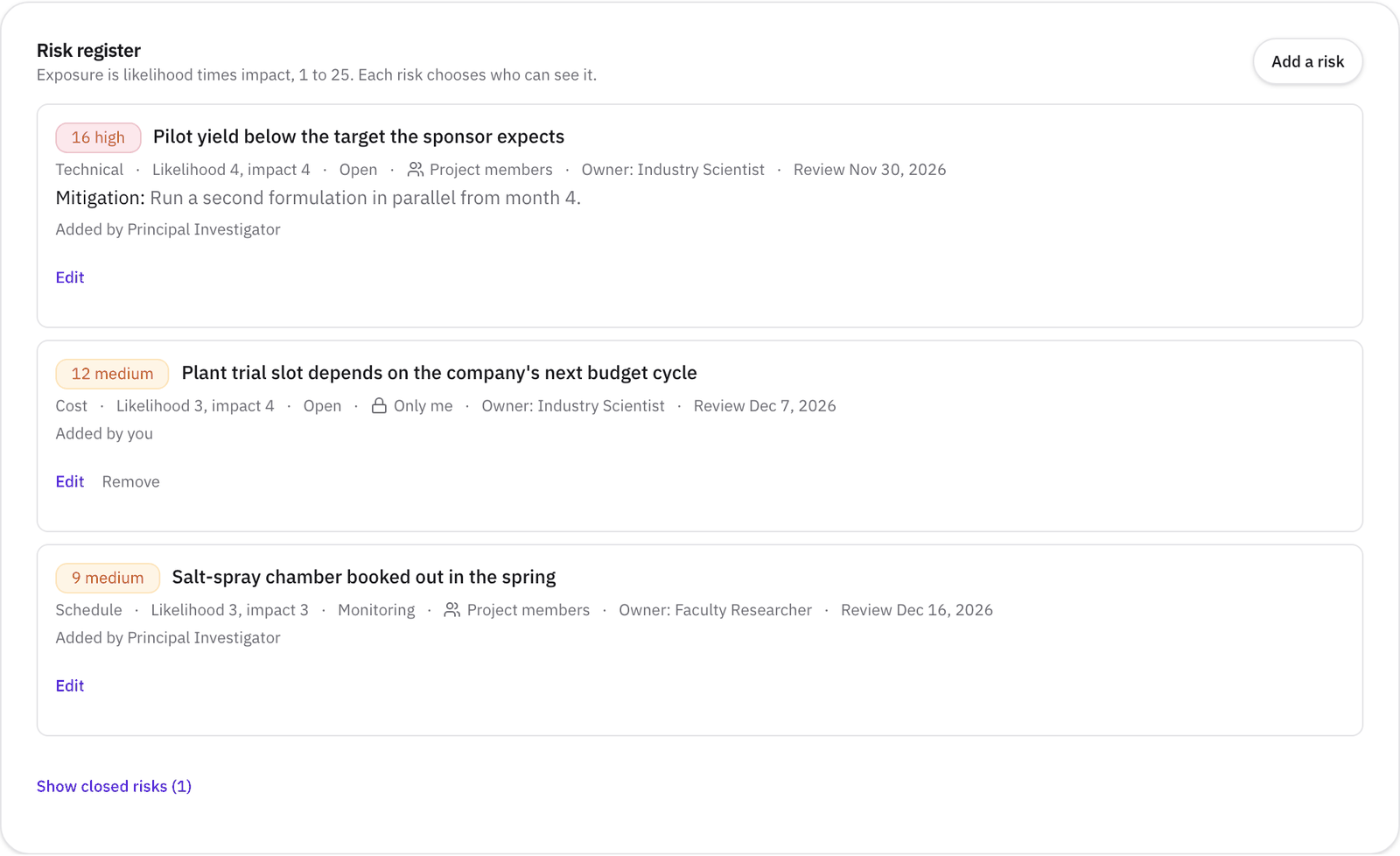
A two-sided project needs this. A company's team may track a risk about its own budget cycle that it isn't ready to share, and a university lab may track one about a student's graduation date. Only the person who added a risk can change its audience. A risk you can't see doesn't appear for you anywhere, and nothing about risks is written to the project's Activity tab, so a private risk's title never reaches the other side.
Step 4Name an owner, a mitigation, and a review date
Fill in the rest of the form:
- Risk owner: the project member who watches the risk. It has to be someone who can see it, so a risk set to Only me can only be owned by you.
- Status: Open, Monitoring, or Closed. Closed risks drop to the bottom of the register, behind Show closed risks.
- Review on: the date someone should look at the risk again.
- What could happen and Mitigation: optional notes on the effect and on what you'll do about it.
Click Add risk. On the review date, the risk's owner gets an email, or the person who added it if there's no owner. It goes only while the risk is open or monitored, and only while that person can still see it. The email is part of Project deadline reminders in your notification settings. A review date that has passed shows in red on the register until someone updates it.
The person who added a risk, the project owner, and admins can remove it, as long as they can see it.
Step 5Watch exposure on the quad chart and the health color
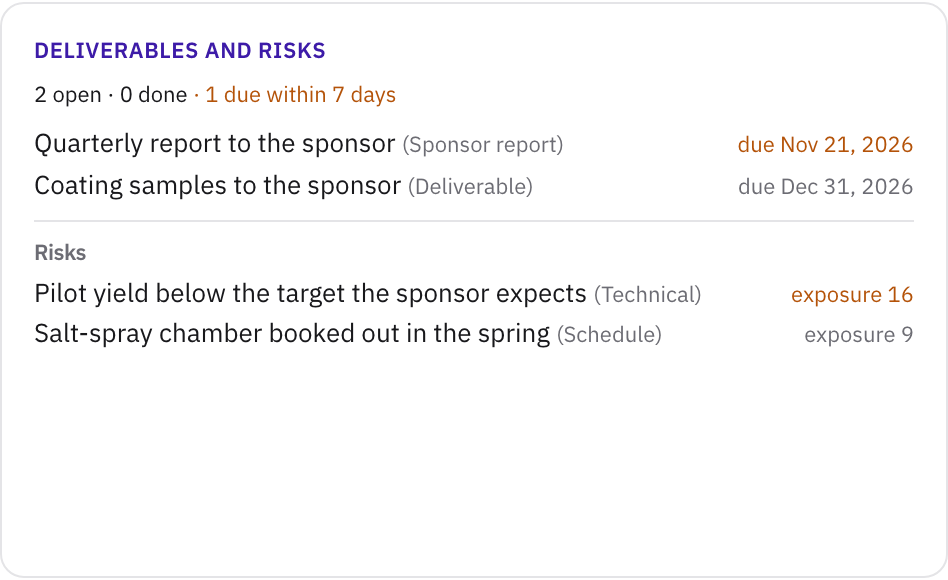
The register lists open and monitored risks first, highest exposure at the top. The same risks feed three other places:
- The quad chart. On the Reports tab, the Deliverables and risks quadrant lists the five risks with the highest exposure that you can see, open or monitored.
- The health color. On Pro, a risk that isn't closed and has an exposure of 20 or more turns the project's health color red. One from 15 to 19 turns it amber. Only risks shared with all project members count, so a private risk never changes the color everyone sees.
- The compliance card. Open risks in the Compliance category also appear on the project's Compliance card on the Overview tab, for the people who can see them.
On Pro, each saved status report also lists the risks opened and closed since the last report, for risks shared with every member. How to report project status covers the quad chart and the reports.
Step 6Plan each person's effort by month
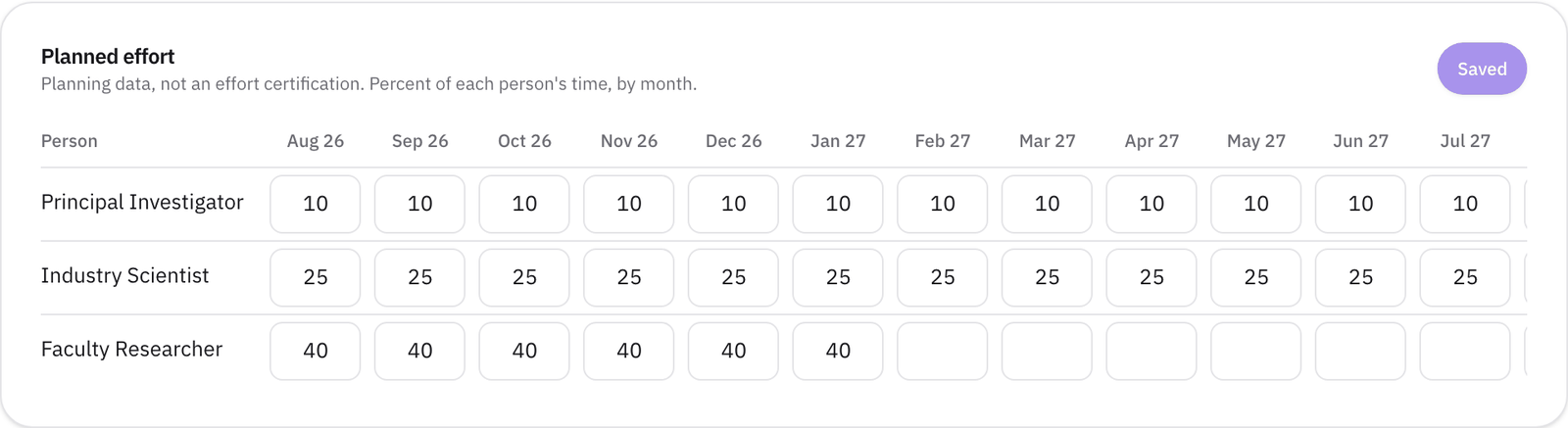
Open the Budget tab. Below the budget, Planned effort shows what share of each person's time the project expects, month by month, across the project's dates. The owner and admins type a percentage for each person and month, then click the Save button, which counts your changes. Everyone else on the project sees only their own row.
The card carries a label you'll want to keep in mind: "Planning data, not an effort certification." It records no actual hours. On a federal award, charges for salaries have to rest on records of the work actually performed. Budget estimates made before the work aren't enough on their own to support those charges (2 CFR 200.430(g)). Use planned effort to agree the plan with your partner, and keep certifying effort through your institution's own system.
What happens if the owner moves to Free?
The register stays. Everyone on the project can still read the risks they're allowed to see, and risks can still be removed. Adding and editing risks, and changing planned effort, need the owner to be on Pro or higher again.
What to do next
- Bring the top risks to the next review. How to run a phase-gate review shows how to record what the reviewers decide.
- Agree the escalation path before a risk becomes an issue. Our default is one week to the project leads, four weeks to the steering committee, and eight weeks to executives. The free Governance Charter records it.
Sources
- Project Management Institute, 2025, A Guide to the Project Management Body of Knowledge (PMBOK Guide), eighth edition, ANSI/PMI 99-001-2025, section 4 (risk register, page 136) and section 5 (probability and impact matrix, page 186). www.pmi.org/standards/pmbok
- Project Management Institute, 2021, A Guide to the Project Management Body of Knowledge (PMBOK Guide), seventh edition, section 4.6.2 (logs and registers, page 184). www.pmi.org/standards/pmbok
- Uniform Guidance, 2 CFR 200.430(g), Standards for documentation of personnel expenses. www.law.cornell.edu/cfr/text/2/200.430
Related
- GuideHow to manage a university-industry research collaboration: the plain guide
- GlossaryProject manager (research and development)
- GlossarySteering committee
- GlossaryEscalation protocol
- WalkthroughManage an R&D collaboration project: schedule, obligations, budget, and status reports
- HelpReport project status with a quad chart and status reports
- HelpRun a phase-gate review and record the decision
- HelpHow to track a research project budget
- PagePricing
- GlossaryAlliance manager
- GlossaryDecision rights
- GlossaryKickoff meeting