Help center · Tutorial · 4 steps
How to share funding calls with your department or research office
- About 5 minutes
- Team plan and up (project calls on every plan)
- Checked in the app on
To share a funding call with your department or research office, open the call on Helikon and choose Add to your organization's list. Everyone with a seat on your organization's Team or Institutional plan then sees the call, your note, and who's interested or planning to apply, on the Your organization tab under Funding. To share a call with one project team instead, attach it to the project, which works on every plan, Free included.
Before you start: the shared list comes with the Team plan, which is available now for groups of 5 to 25 people (see pricing), and with the Institutional plan. You need a seat on your organization's plan. If you don't see the Your organization tab, ask the owner or an admin of your organization's plan for a seat.
Step 1Add a call to your organization's list
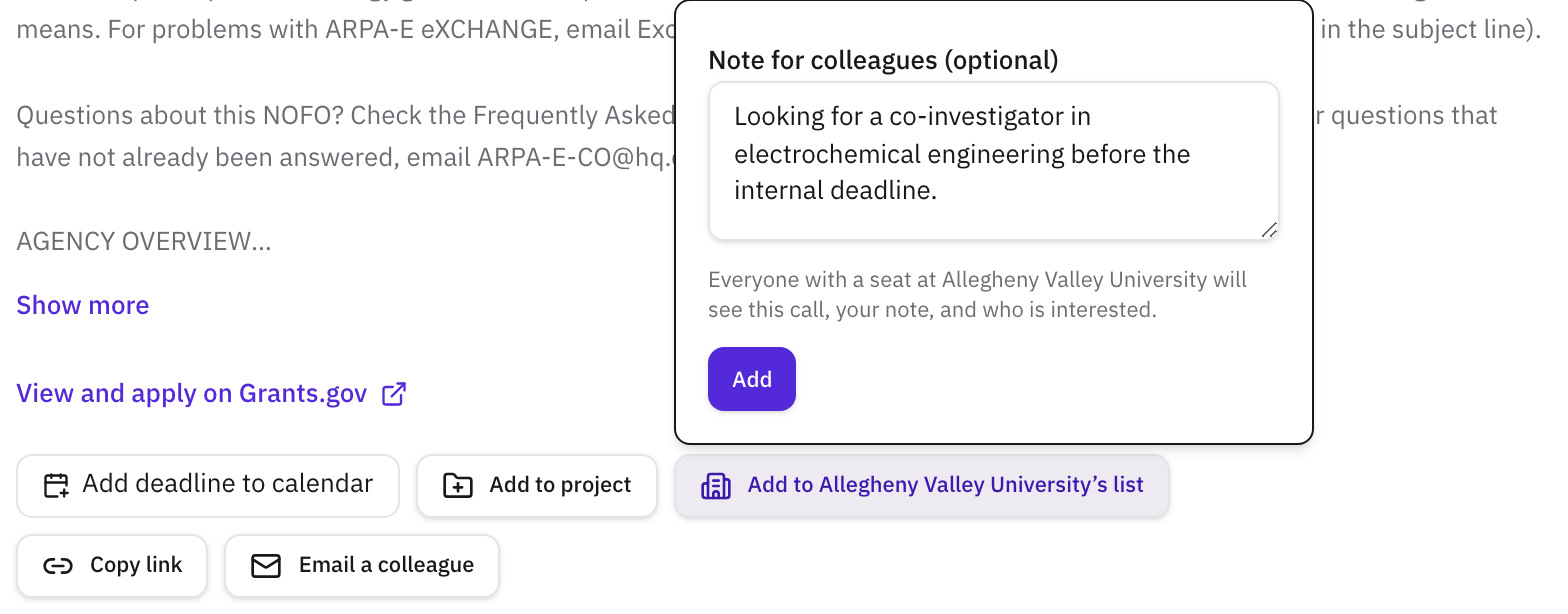
Open any call from Matched to you or Browse all. In the row of buttons under the call's details, choose Add to your organization's list (the button carries your organization's name). Write a note for your colleagues if it helps, such as your internal deadline or the group the call suits, and click Add. A note can be up to 500 characters.
Anyone with a seat can add a call, and each call is listed once. After that, the button reads On your organization's list and takes you to the list.
Step 2Mark your interest
Open Discover, then Funding, then the Your organization tab. Each call has two buttons, Interested and Planning to apply. Click one to mark it, click the other to switch, and click the marked one again to clear it.
Your colleagues see your mark beside the call, in the line that lists who's planning to apply and who's interested. For a research office, Planning to apply is the early signal. It shows who intends to apply while there's still time to help with the budget and the letters, or to choose between applicants when a call limits how many proposals one organization can send.
Step 3Read the list
Open and forecasted calls come first, with the soonest deadline at the top. Closed calls and calls that are no longer listed follow, so the record of what your colleagues looked at stays until someone removes it. Each call shows:
- its title, agency, and opportunity number
- whether it's Open, Forecasted, Closed, or No longer listed
- its closing date and the days left, or the expected closing date for a forecast
- a link to the listing on Grants.gov or SAM.gov
- the note, if whoever added it left one
- who's planning to apply and who's interested
- who added it, and when
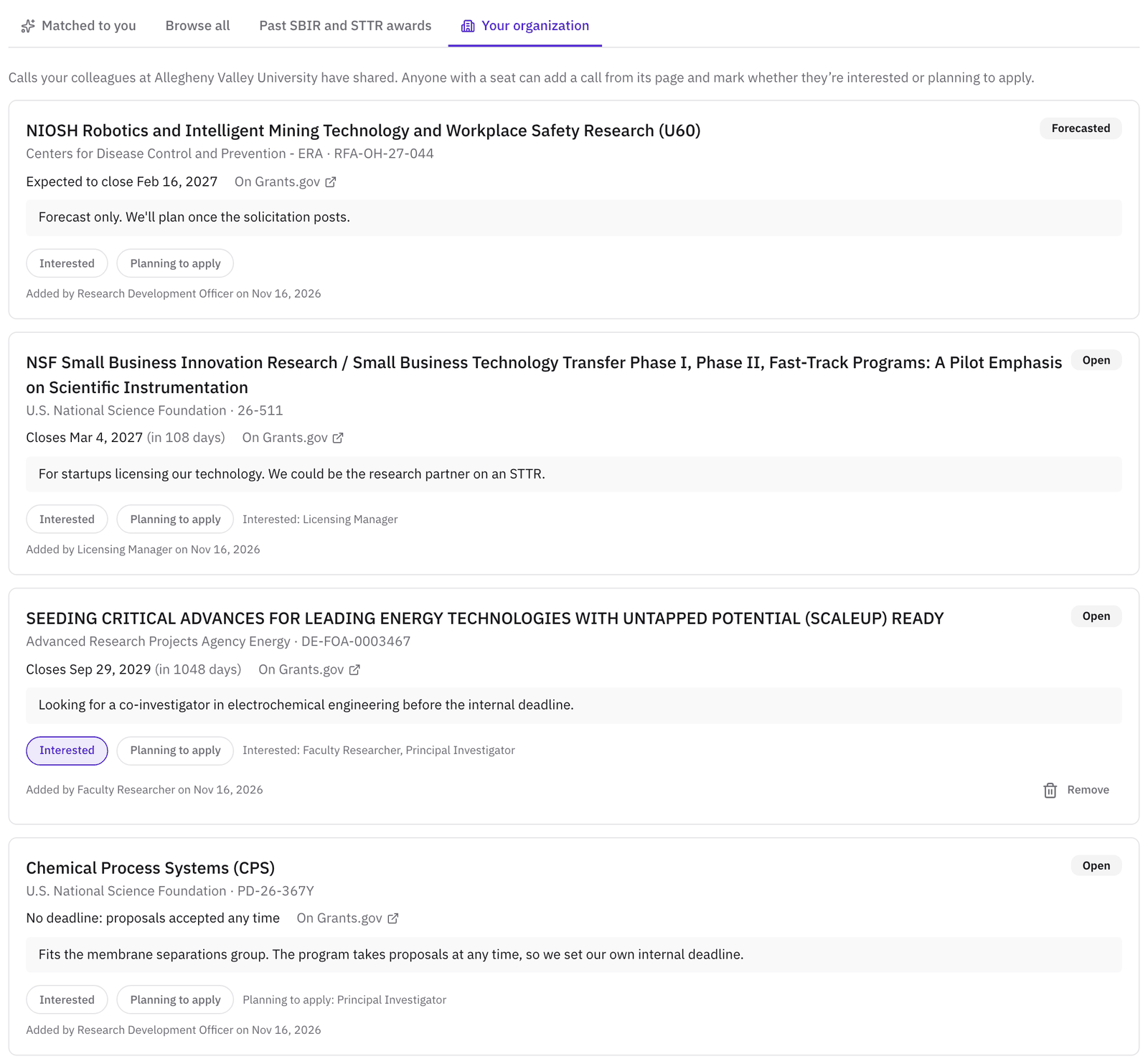
To take a call off the list, click Remove. The person who added a call can remove it, and so can the owner or an admin of your organization's plan. Removing a call clears everyone's marks on it. The list holds up to 500 calls. If your organization's plan lapses, the list closes until an owner or admin renews it.
Step 4Attach a call to a project, on any plan
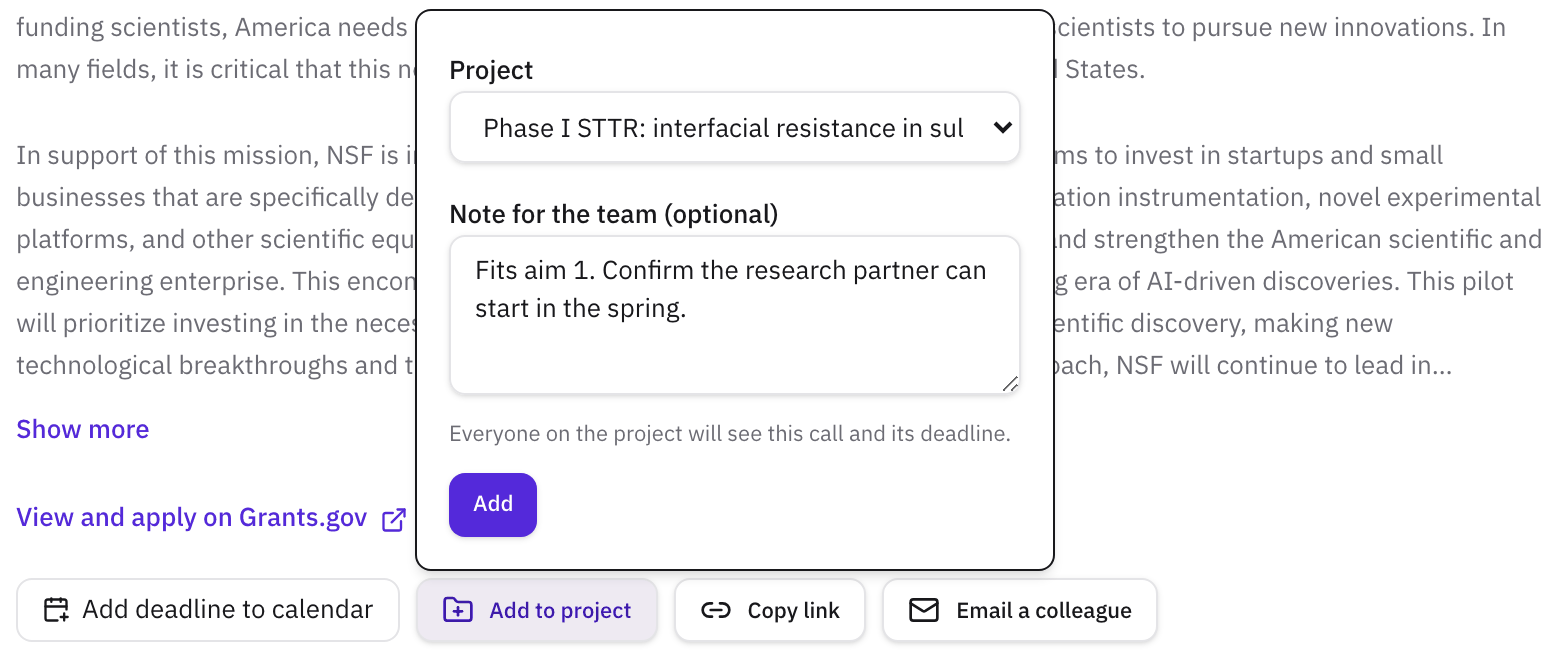
To share a call with the people on one project rather than with your whole organization, open the call and choose Add to project. Pick the project, add a note for the team if you like, and click Add. This works on every plan, Free included. If you aren't on a project yet, the button reads Start a project for this call and opens a new project.
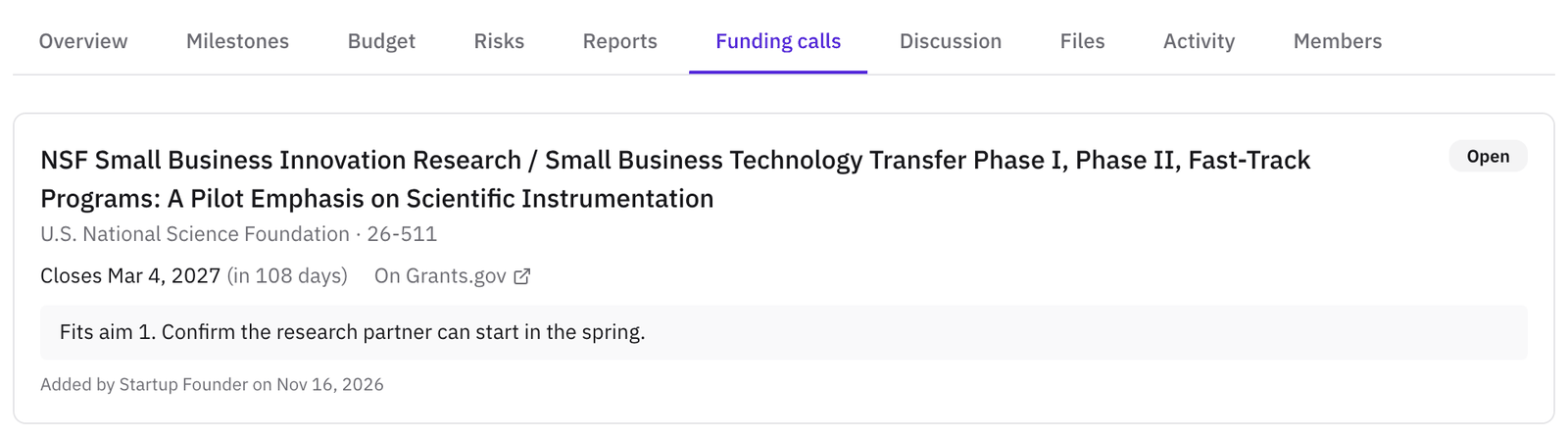
The call then appears on the project's Funding calls tab, with its status, deadline, note, and who added it, and every member of the project can see it. Any member except a viewer can add a call. The member who added it, or the project's owner or an admin, can remove it. A project holds up to 200 calls. On Pro and higher, the calendar feed on your Saved page carries the deadlines of the calls on your projects too.
Which one should you use?
Use your organization's list for calls the whole office or department should see, a project's Funding calls tab for calls one team is weighing, and Save for your own shortlist. A call can be in all three places at once.
What to read next
To find calls worth sharing, see How to find research funding opportunities that match your work. For small-business calls, How to search past SBIR and STTR awards shows who has won on a topic before and with which university.
Related
- GlossarySponsored programs office
- GlossaryPrincipal investigator (PI)
- WalkthroughGet funding opportunities matched to your research
- HelpHow to find research funding opportunities
- HelpSearch past SBIR and STTR awards
- HelpSet up an industry-sponsored project and its contracts
- HelpHow to invite external collaborators to a project